.png?width=300&height=100&name=emma%20logo%20santa%20hat%20(4).png)
Tulli window changes
After selecting Type I, you will now see the UTU system selection options:
-
UTU Import
-
UTU Low Value
-
UTU Warehousing
-
UTU Tax Border
- UTU EIDR presentation notification
UTU Import
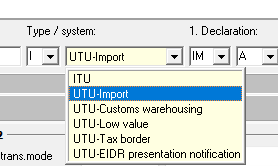
The window layout will change depending on which UTU system is selected.
The first page is very similar to ITU.
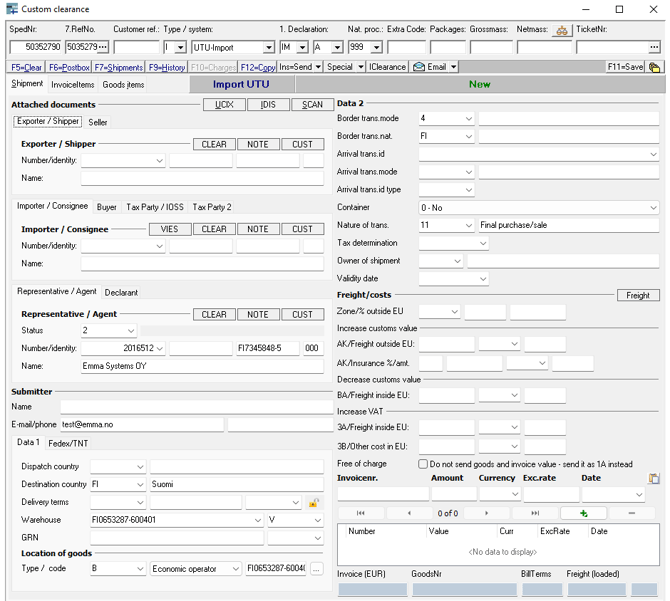
Note a new Seller field has been added under Exporter.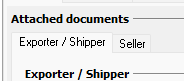
And a new Buyer/Tax party/IOSS field has been added under Importer.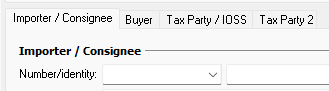
Additional information regarding status 2 and 3 in Representative / Agent
Direct representation, indirect representation, and direct representation under the guarantor’s responsibility.

For UTU Import, this corresponds to options 2 and 3 in Emma, and the FITAK code added = under the guarantor’s responsibility.

In freight cost, we display the code for UTU: AK/3A/3B:
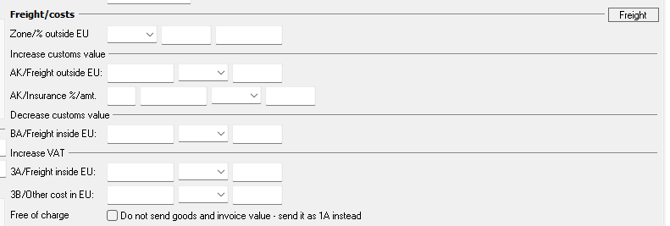
Goods item page:

Gross weight on header or line level for Import
For import declarations, the gross weight may be provided either at header level or line level.
Warehouse releases contain only the total weight.
In cases where a warehouse at the harbour reports a single weight value, this information may be missing on the release.
If needed, you can delete the weight at line level and submit the declaration to Customs using only the header weight. The weight will then appear correctly on the release document.
47. Tax – Calculations
The tax calculations remain correct.
The VAT base field should only be completed for exceptional cases.
(Charge code 80 will still be populated and sent as before when the VAT base is entered.)
Updated layout and fields
Most information is now displayed directly on the first page of the goods item, instead of in multiple tabs at the top as in ITU.
The tabs are now located at the bottom right, covering:
-
Documents
-
Previous documents
-
Additional information
-
Charges
-
Containers

After the tariff number, additional codes can be added.
Standard codes are pre-filled by default, and you may add up to four extra codes.
To change the tariff number, double-click in the grid. This applies to all grids.
Example: To change the tariff number, double-click the area highlighted in blue:

The tariff number will then be highlighted in blue, and the line becomes editable.
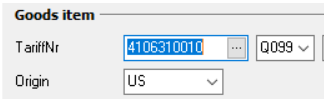
Field explanations:
| Field | Description |
|---|---|
| Origin | Origin country (2-letter code). |
| Amount | Enter the value followed by the currency code (e.g., USD). Changing currency requires manually updating the amount. |
| Gross and net weight | Locked padlock = system proposes values. Open padlock = values can be entered manually. |
| Packages | Package type and quantity. |
| Marks and numbers | Free-text field for package markings (e.g., tracking number or address). |
| Supplementary unit | Required if the tariff number specifies additional units (e.g., 10 kg and 5 pieces). |
| Procedure code and additional procedures | Indicates the import procedure being applied, plus any supplementary requirements. |
| Preference code | Shows the tariff preference or agreement applied, including any reduced or zero duty rate. |
| Quota number (if applicable) | Used when a tariff preference requires a quota number to link the goods to the correct customs quota. |
| Description – goods description | A brief description of the goods that clearly identifies the item for customs processing. |
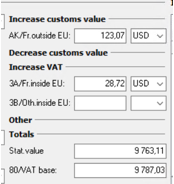
On the right side you see calculation – fields regarding increase/decrease is moved from first page.
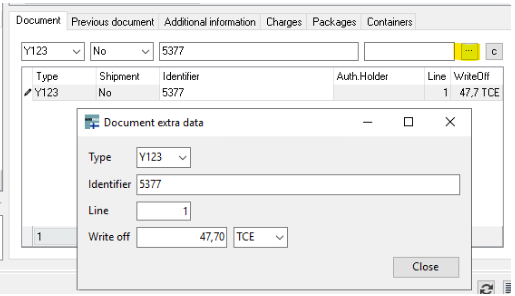
You can press the 3 dots for extra info - for example write off
UTU Codes / New Fields
New office code for UTU
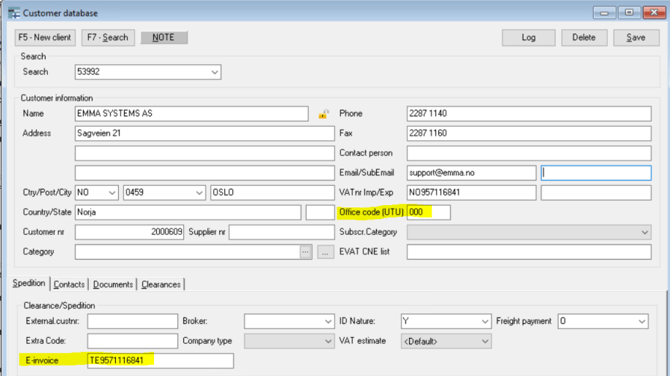
A new UTU office code can be set in the Customer Database – see the examples below.
Codes in Additional Information
FIVER – Electronic invoice
In Emma, add the e-invoice address in the Customer Database or via the CUST button in the Tulli window.
Customer Database:
E-invoice addresses follow the format TE0037VATNO, or another valid electronic invoicing address.
If an e-invoice address is present, Emma will automatically add the FIVER code to the tariff line.
FIPDF – Requesting Tulli to send us the PDF of the shipment
Emma automatically adds the FIPDF code.
Emma will also issue a warning in Output Control if the code is missing before sending the declaration.
FITAK – Taking the costs even when the customer has customs credit
If FITAK is added, the invoice will be issued to you rather than to the customer.
Free-form Contact
Customs may request code 439.
FI439A is a free-form contact message.
You can create this via the F6 Postbox – press the Free Form button.
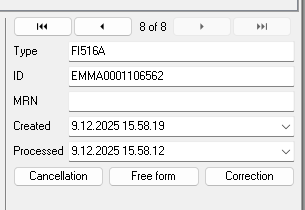
Fill in the form and send the request.
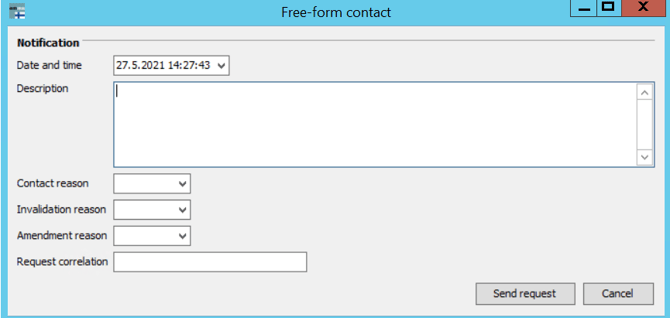
Enter the reason for contact and select the appropriate option from the drop-down menu.
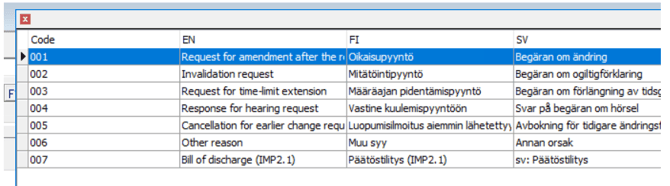
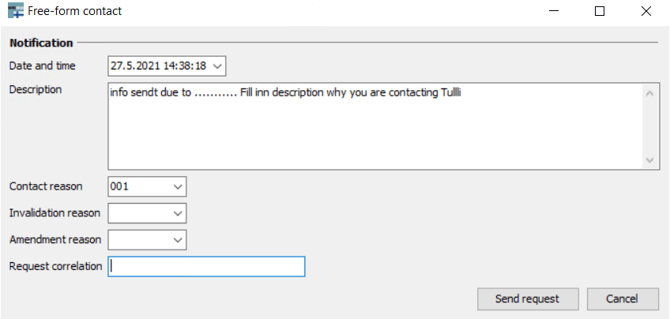
Additional options are also available in the drop-down list.
Documents
| Document type | Name in UTU | Equivalent in the old system |
|---|---|---|
| Release | IMPLUO | Similar to FIIREL |
| Decision | IMPTUL | Similar to FIICDE |
| Transfer authorisation | IMPSII | Equivalent to FIIREM |