.png?width=300&height=100&name=emma%20logo%20santa%20hat%20(4).png)
Invoicing (Fakturering)
How to make an Invoice.
This can be done in multiple flows, so we will try to explain them how different flow can be archived.
First flow. (From a declaration made in Emma)
Click on ‘Fakturering’ to open the Invoicing module.
You should now be met by this view

Click on the tab ‘Oppdrag’
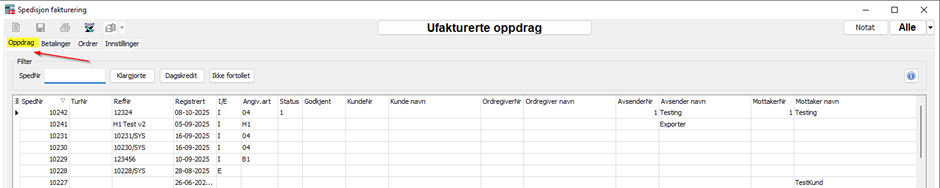
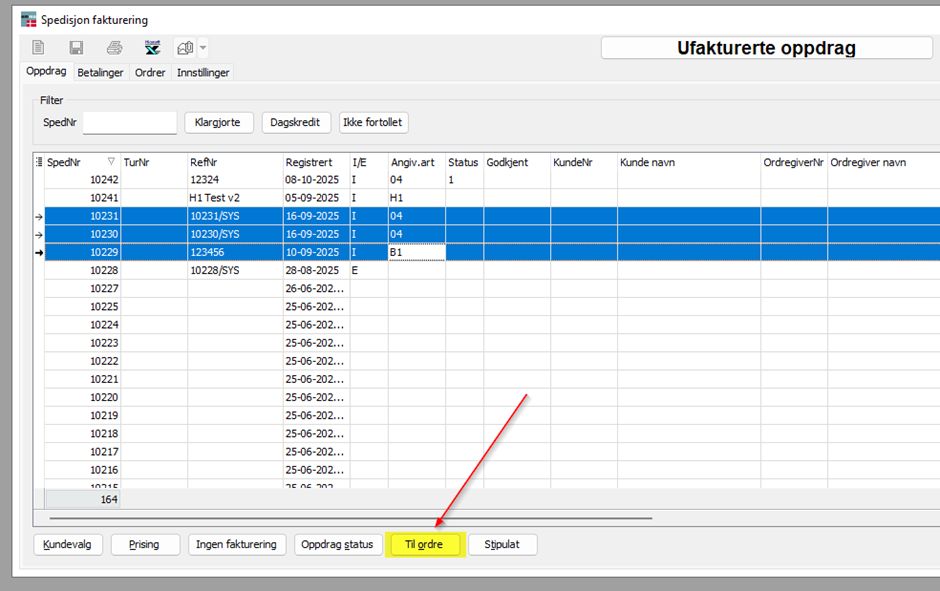
Here you can see all your unbilled declarations.
Select one or more declarations you want to make invoices for (Shift can be used to select from Start to End, and Ctrl can be used to pick specific ones)
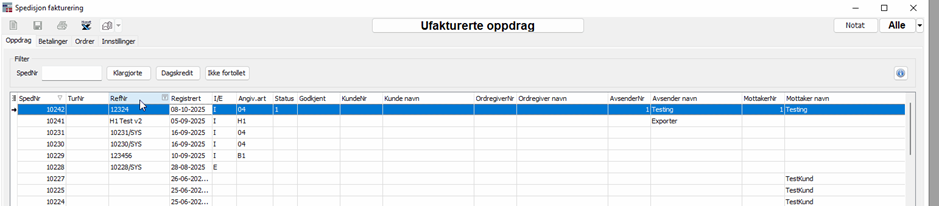
When you have selected the one(s) you want to make invoices for, right click one of you markings and select ‘Til Ordre’
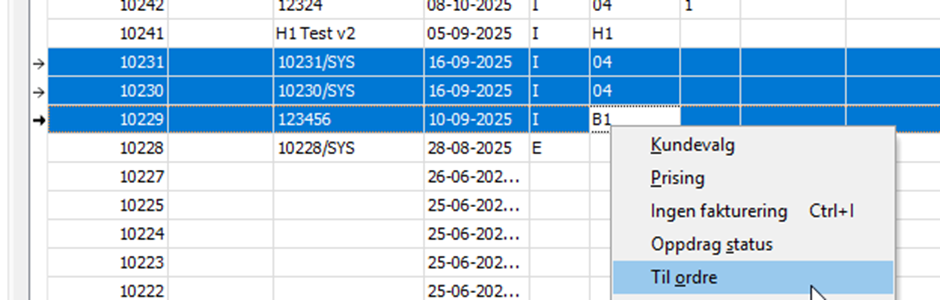
Instead of right clicking you can also make use of the ‘Til Ordre’ button found at the bottom of the view.
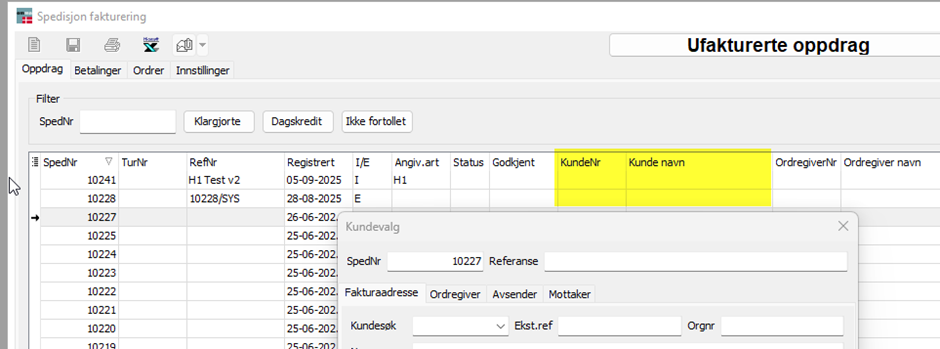
If no ‘Kunde navn’ is giving you will be met by this popup
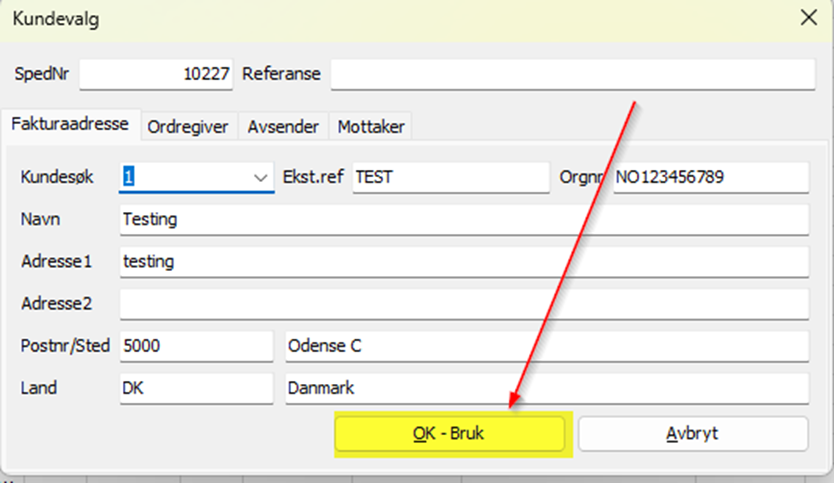
Select the right Customer, and click ‘OK – Bruk’
Now the screen will move tab over to ‘Ordrer’ (back where we started when opening the ‘Fakturering’ module.
If you only made 1 invoice, this will be the preselected and you are ready to add the articles you need for this specific invoice.
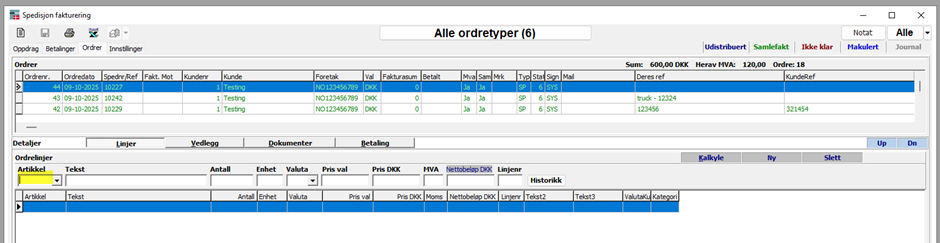
Start adding you invoice lines, typing your article numbers, or click the dropdown to see what you have of options.
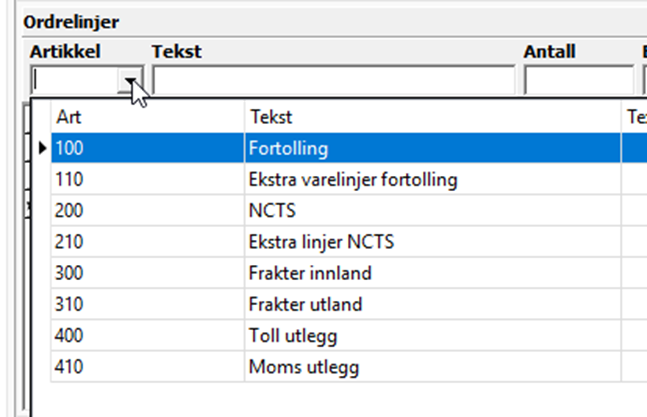
Depending on how the article register is set up, you will need to adjust ‘Antall’, ‘Valuta’, ‘Pris Val’, ‘MVA’

When you are at ‘Linjenr’ and push enter, you will be ready to add you next article if needed.
At the bottom of the view, you can see the total for this invoice.
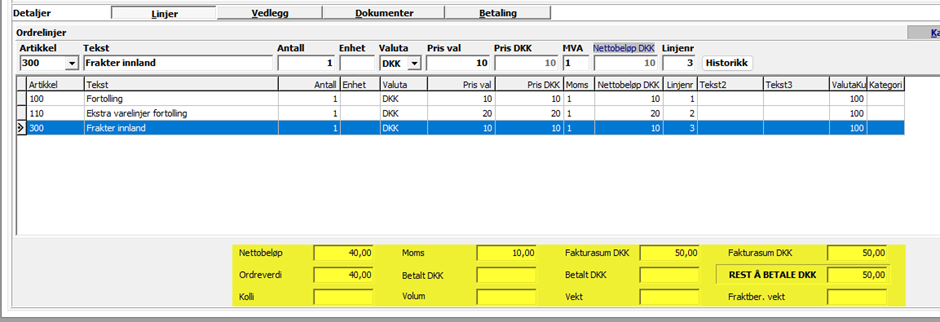
When finished you just leave the invoice as is, it will autosave when you have finished your edits/adding.
If you click at the Print Icon
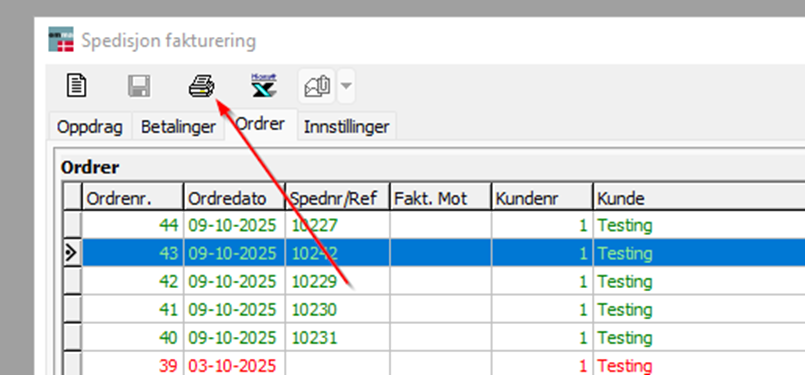
You will give the invoice a InvoiceNo, and Status column will change from 6 to 7
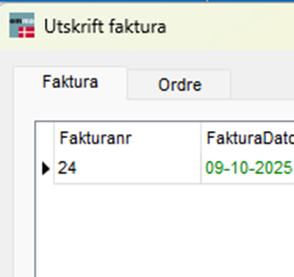
And the Invoice will be moved out from the view ‘Alle ordretyper (6)’ into view ‘Alle ordretyper (7)’

Column ‘Klar’ in ‘Alle ordretyper (7)’ can have to values, ‘Nei’ or ‘Ja’.
If ‘Klar’ is set to ‘Nei’ the invoice is not ready for be sent for distribution.
If ‘Klar’ is et to ‘Ja’ the invoice is ready to be sent for distribution.
‘Nei’ will be set if you click ‘Avslutt’ from the Print dialog
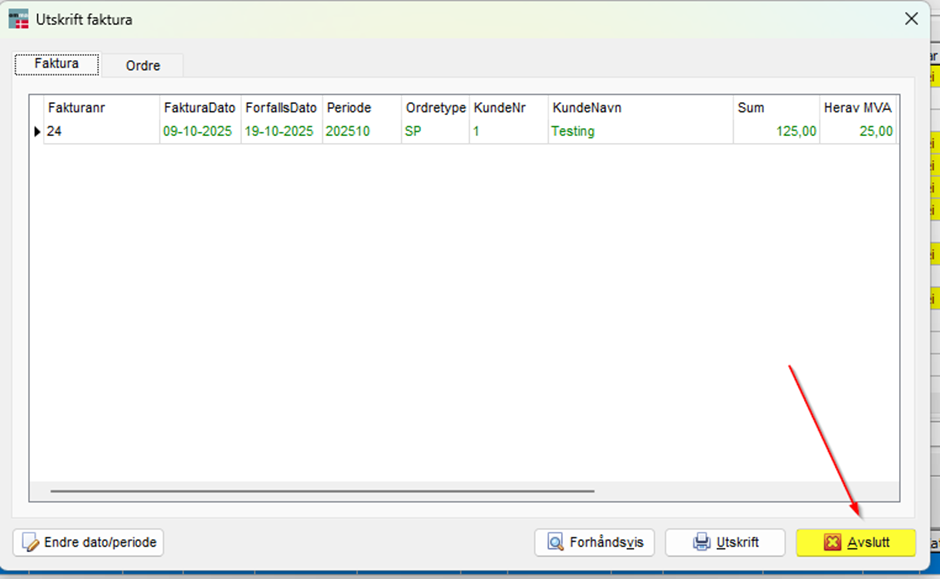
To move it into ‘Ja’ simply click the Print button, and click ‘Utskrift’
You will then be met by this
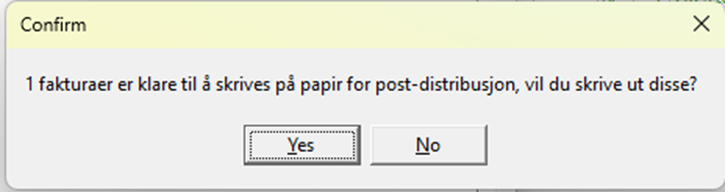
Here it’s OK to click ‘No’, if you won’t like to make a psychical print!
Now the ‘Klar’ column changed to ‘Ja’, and the invoice is ready for distribution.
