.png?width=300&height=100&name=emma%20logo%20santa%20hat%20(4).png)
1. Start in Frontend – Create the Declaration
-
Go to Frontend → Declaration.
-
On the General page:
-
Enter your own customs warehouse where the goods will be stored (private or public customs warehouse).
-
-
In the Goods storage section:
-
Enter the goods location code where the goods are currently stored.
-
If the storage location is changing between two customs warehouses, the movement must be done using a customs warehouse guarantee, not as a domestic consignment.
-
-
For Type of delivery, select “Order”.
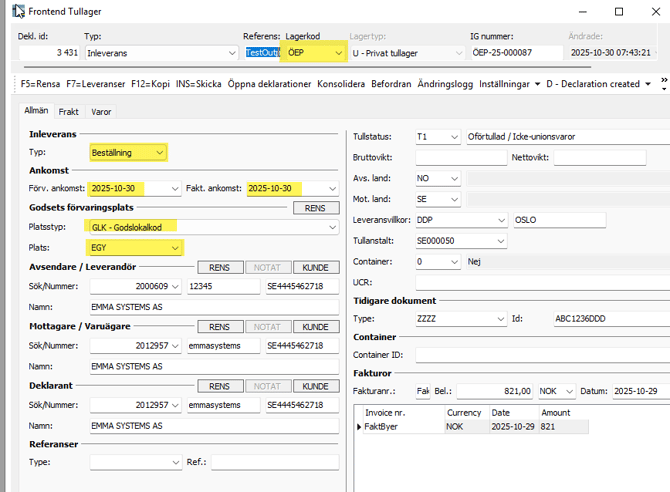
When the General page and the goods lines are completed, fill in the transport information, including invoice details so that a statistical value can be calculated.
2. Create the CWDS from INS
-
From the declaration, use INS to create a CWDS movement.
-
In the CWDS view, complete the required transport and goods information.
-
Press INS to submit the CWDS to Customs.
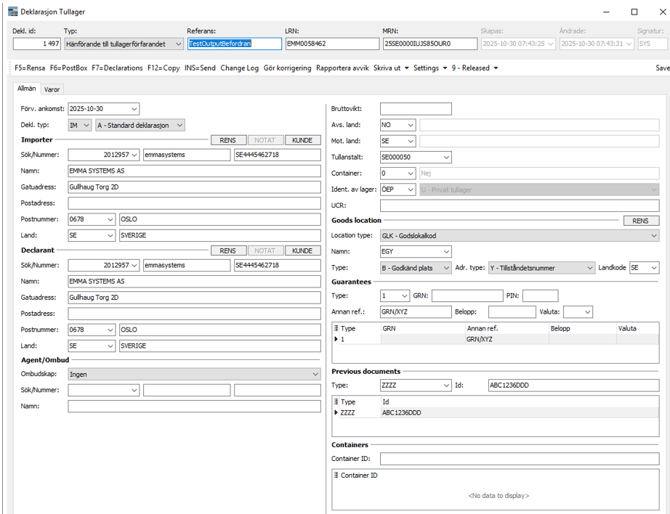
When the CWDS is approved, an MRN is assigned for the entry into the customs warehouse, and the CWDS is posted in the customs warehouse accounts.
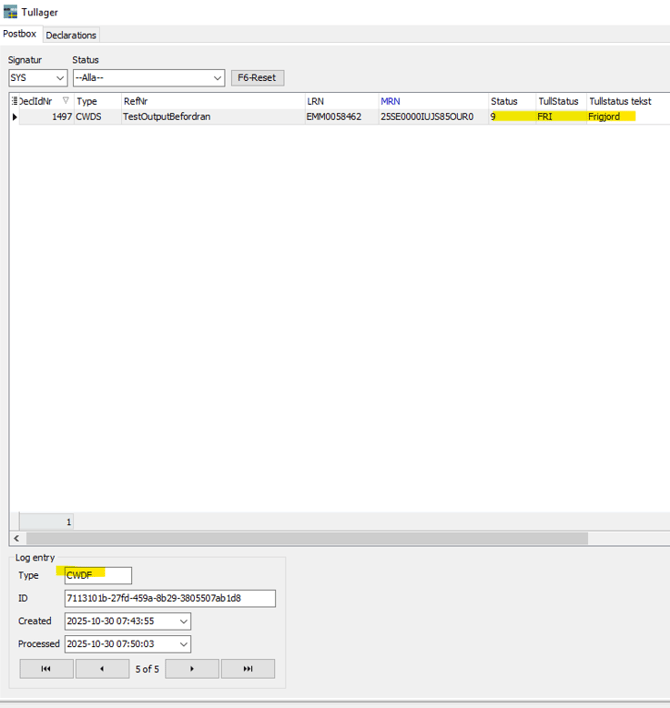
3. “Befordran” / Transportation Status
The transportation (“Befordran”) has three statuses:
-
P = Pending
-
A = Active
-
D = Done
-
When the CWDS is created, the transportation status in Frontend is set to P (Pending).
-
When the CWDS is approved, the transportation status changes to A (Active), meaning the goods are now moving between the two customs warehouses.

4. Receiving and Repacking the Goods
Once the CWDS is approved and the Frontend transportation status is A (Active), you can receive the goods and optionally repack them from transport level to the level you want to store them at in the customs warehouse.
-
Enter the first ID from the transport (for example, 3431).
-
Enter this ID as Supplier, and use the same goods location code for both warehouse code and storage location.
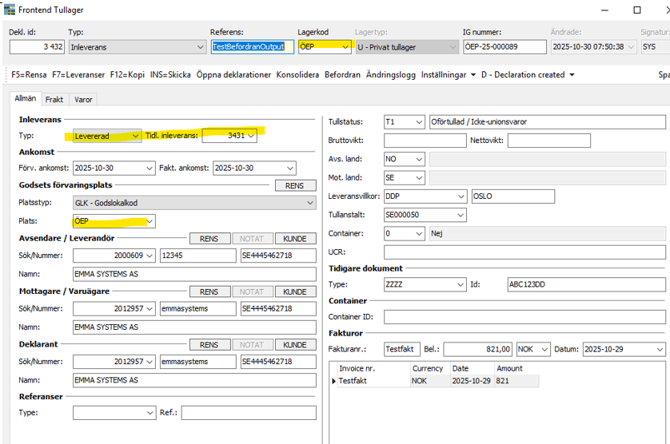
3. Under Goods, enter the level at which the goods will be stored in the customs warehouse:
-
-
Storage Quantity is the quantity you want the goods to be packed into.
-
Packages is often used for transport packaging.
-
Note:
-
If you do not want to repack and only want to add the goods directly to the item you are receiving, leave Storage Quantity empty and instead only fill in Package, Number of packages, and Mark.
-
There is also an XLS paste function if you have many article numbers.
-
You can add REX / GSP and similar by using the “Set common” function.
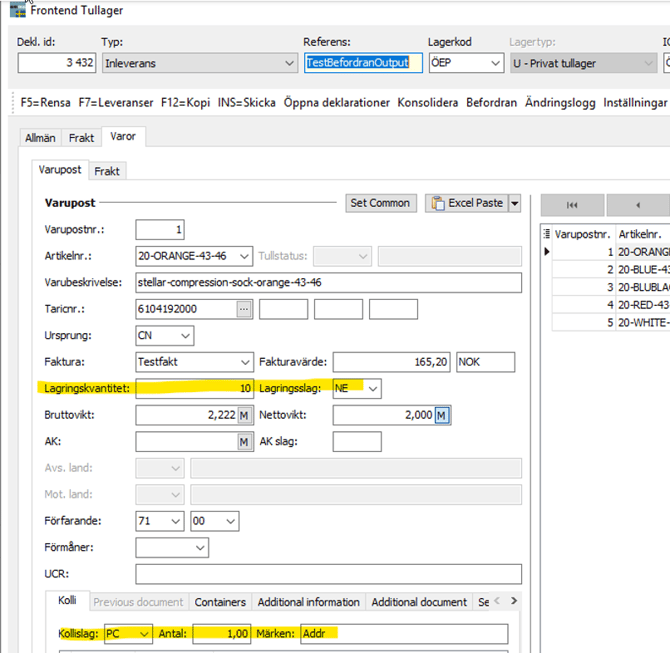
4. When you press INS, the CWDS is repacked according to the values you entered, and the transfer is completed.
5. Transactions in Customs Warehouse Accounting
In the customs warehouse accounts, you will see three transactions related to this movement:
-
INC 1 – the CWDS when it has been approved (original entry).
-
COR – the reversal of the original CWDS.
-
INC – the new entry after the CWDS has been repacked.
