.png?width=300&height=100&name=emma%20logo%20santa%20hat%20(4).png)
Guide from toll: https://toll.github.io/api/maskinporten/maskinporten.html
Important: Ensure that the terms of use have been fully completed and that the necessary rights have been delegated to you in Altinn.
For the English version, click here.
Norwegian guide
1. Logg inn på Samarbeidsportalen
-
Registrer og fyll ut bruksvilkår: https://samarbeid.digdir.no/maskinporten/konsument/119
-
For å få tilgang til produksjons -Testmiljøet, må en administrator i virksomheten delegere rettigheten "Selvbetjening av integrasjoner i ID-porten/Maskinporten" til deg via Altinn.
-
Når du har riktig rolle, får du opp valget om produksjons -Testmiljø i portalen.
2. Opprett en ny integrasjon i Test/Prod
- Logg inn i selvbetjeningen med organisasjonsnummer
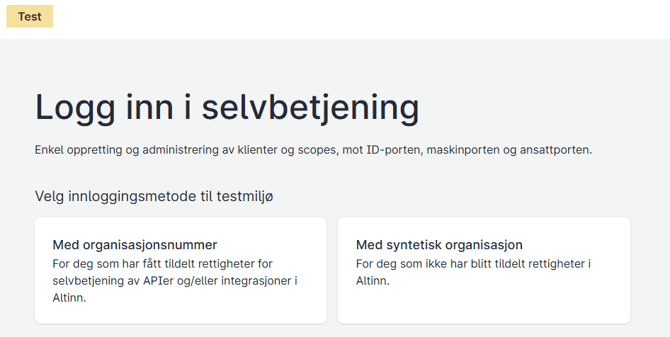
-
Logg inn med BankID, og velg så opp rett klient
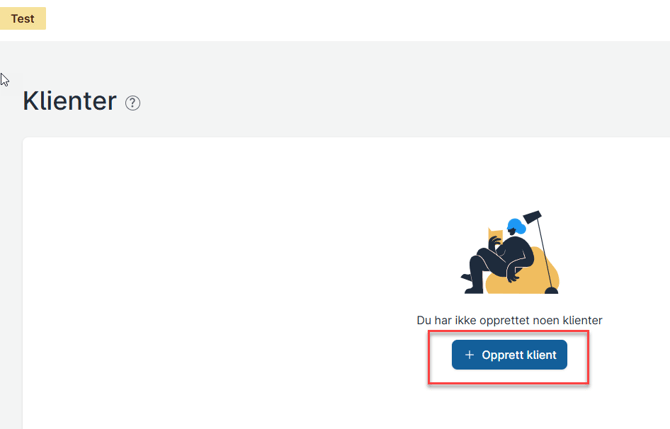
- Opprett klient fir Maskinporten:
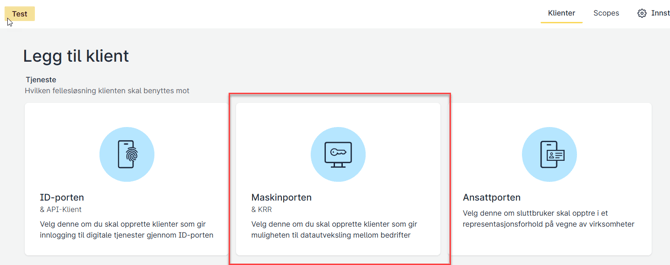
-
Fyll inn feltene for navn og beskrivelse.
-
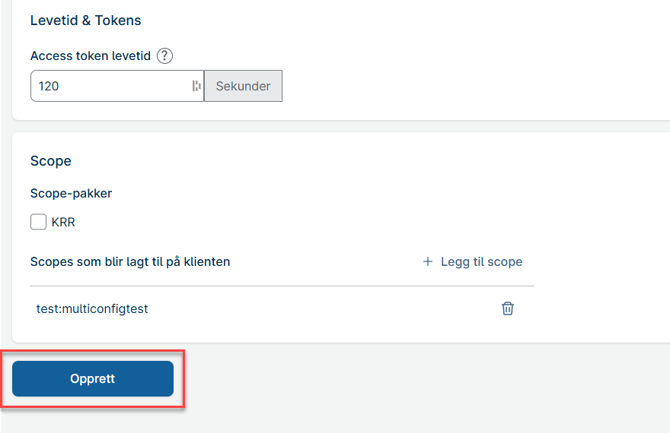
Legg til følgende scopes etter behov:
- toll:movement/road/v2
- toll:movement/air
- toll:movement/rail
- toll:movement/maritime
- toll:movement/entry
- toll:goodsdeclaration/document.write
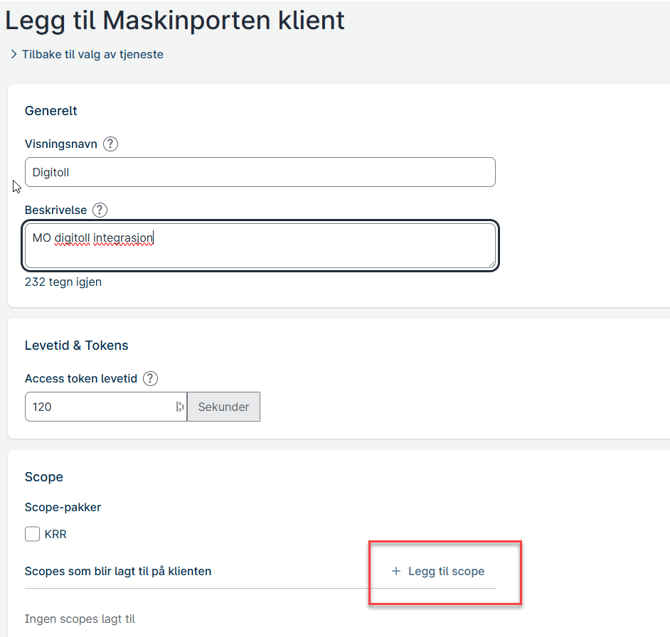
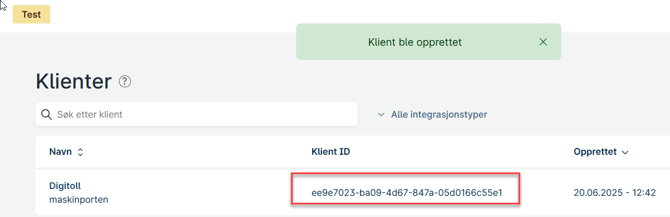
- Til slutt velger 'Opprett', kopier 'KlientID' og send til support@emmasys.com
Installasjon kan gjøres av Boss user i Emma: - Gå til Send/Hent
- Under Setting og Kurermanifest/E-tollmanifest
Velg miljø: Test eller Prod, og legg inn IntegrasjonsID for digitoll for manifester, og for dokument sending.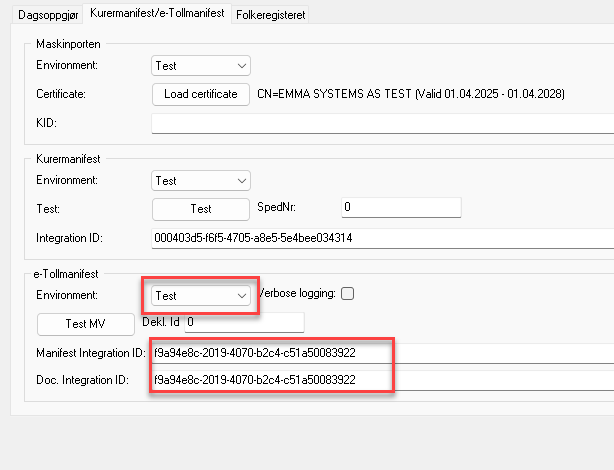
-
Velg Save settings, nederst i høyre hjørne.
3. Forklaring av relevante scopes
toll:movement/road, /Air, /rail, /maritime
-
Beskrivelse: Brukes for innsending og henting av data knyttet til varebevegelser , inkludert deklarasjoner og spørringer på eksisterende forsendelser.
toll:movement/entry
-
Gjelder API-er:
movement/presentation,movement/routing -
Beskrivelse: Brukes for å melde inn og styre varebevegelser ved innpassering i Norge. Dekker presentasjon av varer og ruting etter ankomst.
toll:goodsdeclaration/document.write
-
Gjelder API: Dokumentopplasting
-
Beskrivelse: Gir tilgang til å laste opp støttedokumentasjon (som fakturaer og transportdokumenter) til tolldeklarasjoner.
English guide
1. Access the Collaboration Portal
To gain access to the production environment, an administrator in your organization must assign you the “Self-service for integrations in ID-porten/Maskinporten” role via Altinn.
Once the correct role is assigned, you’ll see the option to access the production environment in the portal.
2. Create a New Integration
-
- Log in to the self-service portal using your organization number.
-
Log in with BankID, then select Create client.
- Create a client for Maskinporten:
- Log in to the self-service portal using your organization number.
-
Enter both the name and description for the client in the corresponding fields.
-
Add the following scopes as needed:
- toll:movement/road/v2
- toll:movement/air
- toll:movement/rail
- toll:movement/maritime
- toll:movement/entry
- toll:goodsdeclaration/document.write
Once complete, click Create, then copy the Klient ID and send it to support@emmasys.com.
Installation can be performed by a Boss user in Emma:
-
Go to Send/Hent.
-
Under Settings and Kurermanifest/E-tollmanifest:
-
Select environment: Test or Prod and enter the Integration ID for Digitoll for both manifests and document sending.
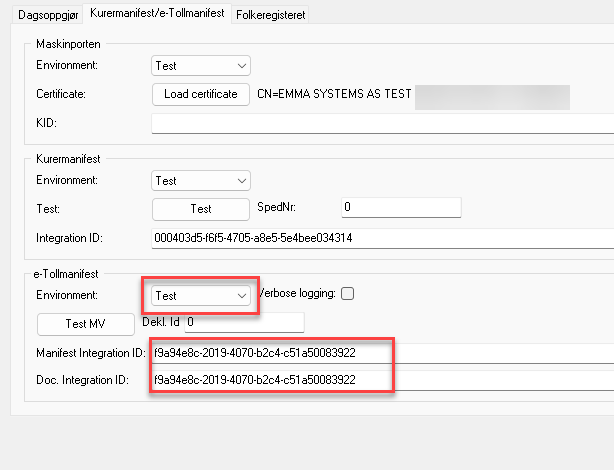
-
Click 'Save settings' in the lower-right corner.
3. Explanation of Relevant Scopes
toll:movement/road, /Air, /rail, /maritime
-
Description: Used for submitting and retrieving data related to cargo movements, including declarations and queries on existing shipments.
toll:movement/entry
-
Applies to APIs:
movement/presentation,movement/routing -
Description: Used for notifying and managing goods movements at the point of entry into Norway. Covers goods presentation and routing after arrival.
toll:goodsdeclaration/document.write
-
Applies to API: Document Upload
-
Description: Grants access to upload supporting documentation (such as invoices and transport documents) for customs declarations.