.png?width=300&height=100&name=emma%20logo%20santa%20hat%20(4).png)
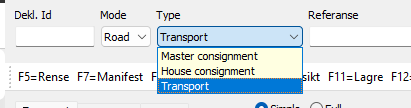
To get started, press F5 = Clear and select Transport in the Type field.
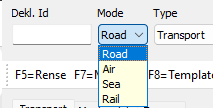
Make sure you select the correct endpoint for the mode of transport: road, air or rail.
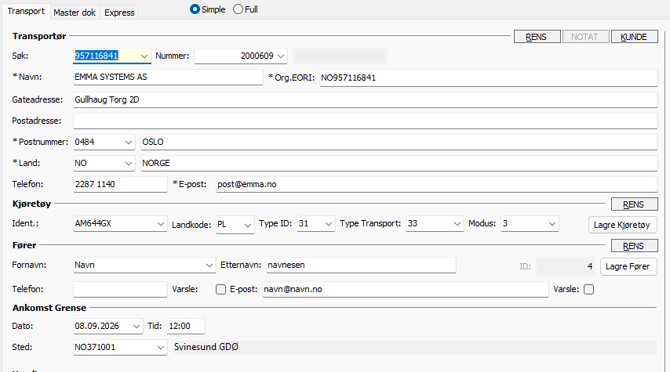
Complete the transport details
Simple View displays the mandatory fields required for the transport.
-
Carrier: Select the company responsible for the transport. Enter the company name, EORI number, telephone number and email address. If any information is missing, we recommend updating it in the Markedsbase or via the Customer button.
-
Vehicle: Enter the vehicle identification number and country code.
-
Driver: Enter the driver's name and at least one contact detail.
-
Arrival: Enter the place, date and estimated time of the border crossing.
Carrier, Vehicle and Driver details can be saved in MO Digitoll Maintenance for future use.
Connect the Master Consignment:
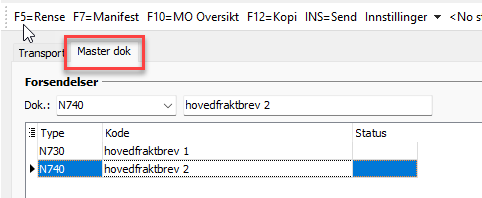
In the Master dok tab, add the Master Transport Document number used for the Master Consignment
Multiple Master Consignments can be connected to the same Transport.
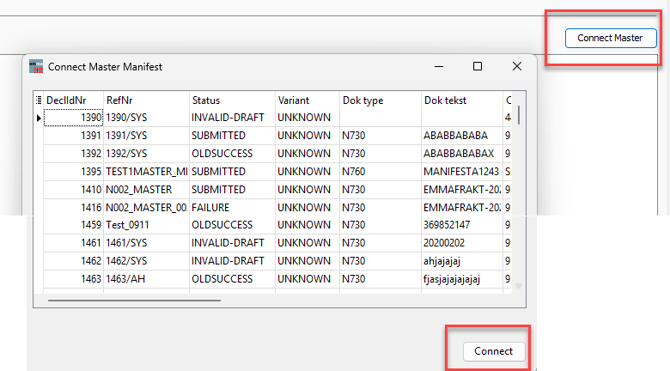
Click Connect master, select the Master Consignment and click Connect.
Connect House Consignments directly:
If House Consignments are connected directly to the Transport without a Master Consignment, you can enter the House Transport Document manually or use Connect house in the House grid.

Submit the Transport:
When all required information has been entered and the consignments are connected, press INS = Send to submit the Transport to Norwegian Customs.
The connected consignments can be viewed in the MO Dashboard by pressing F8.
Amend or cancel a Transport:
To make changes to a submitted Transport, select Korriger.
Select Kanseller if the Transport is to be cancelled.