.png?width=300&height=100&name=emma%20logo%20santa%20hat%20(4).png)
Invoice match makes it possible to ...
- Verify that each invoice has a corresponding customs declaration
- Compare booked invoice value with declared customs value
- Identify differences in value, currency code, or missing declarations
- Build a clear audit trail between accounting and customs data
Why is it important to use Invoice match?
Invoice Match is particularly important because the business is responsible for calculating and determining the basis per rate for import VAT, based on the declared customs value. The module therefore acts as a control mechanism between what is recorded in accounting and what is declared.
Incorrect declared values will affect the company’s ability to report VAT correctly and claim deductions, and must therefore be recalculated through the relevant customs authority systems (country-specific).
By linking the invoice number to a unique customs declaration number, the business can:
- Identify goods purchases that have not been customs declared
- Find customs declarations with incorrect value basis
- Link the customs declaration to accounting with voucher number and documentation
Important control points before starting
Before starting the invoice matching process, it is important to ensure the following:
- All required fields in the Excel template are completed
- Reconciliation and follow-up for the period to be matched has been completed
- Customs representative use commercial invoices (not proforma invoices) as the basis for declarations
- The customs representative registers the invoice number in the correct field in the customs declaration
- Invoice numbers are unique
- Domestic transactions are not included
We recommend not uploading credit notes, as these typically need to be handled through discrepancy registration and recalculation.
Getting started with Invoice Match
Go to the report commercial invoice overview.
Select the period to be matched and verify that the invoice numbers are correct before starting.
This provides insight into whether you should initiate dialogue with suppliers to ensure that correct documentation and references are used in the declaration process.
Required columns
In the template, certain columns are mandatory and must be completed.
All columns A - L must be included when uploading:
- A = Invoice number
- C = Party / buyer–seller
- E = Invoice date
- K = Value in currency
- L = Currency code
Before importing data into Emma Compliance, ensure that invoice data is extracted from the accounting system and structured in the required format.
This is done using an Excel template, available on the last page of this document.
We recommend creating separate files for:
- Supplier ledger (purchases/import)
- Customer ledger (sales/export)
Invoice match in Emma Compliance
In Emma Compliance, go to the Invoice Match module.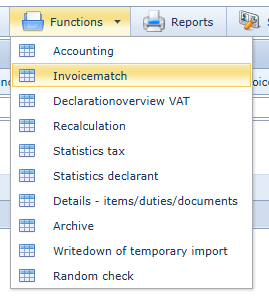
The screen is divided into two sections:
- Upper section: Invoice data from the accounting system
- Lower section: Customs declarations stored in Emma Compliance
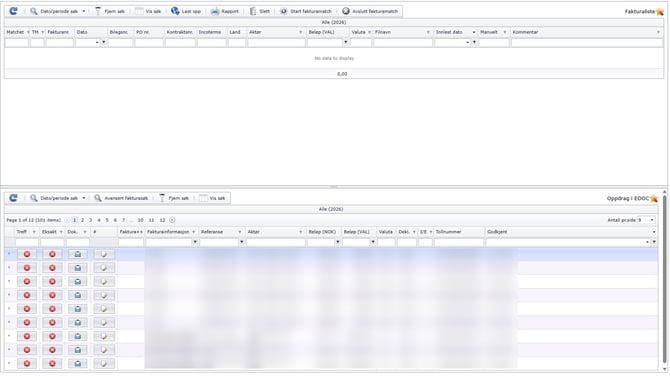
Click Upload and select the completed Excel file.
Note: Make sure to remove any additional sheets. Only one sheet should be uploaded.
Matching process
Once the Excel file is uploaded and imported, you can start the matching process.
The system will attempt to match invoices from accounting with customs declarations stored in the archive.
Matching can occur in three ways:
- Exact match (invoice number matches exactly)
- Indirect match (invoice number appears as part of a reference)
- Manual match, where the user links invoice and declaration manually
How to perform a manual match
If the system cannot match automatically, you can do this manually by:
- Searching for the correct customs declaration in the list
- Selecting the relevant invoice
- Linking the invoice and declaration manually in the module
Discrepancies and comments
If there are discrepancies between booked value/currency and declared value/currency, this can be marked and documented by:
- Adding a comment on the invoice line
- Using Register discrepancy on the declaration and sending a request for recalculation to the relevant customs representative
You can also remove an incorrect match and create a new one.
Invoice Match template
In the template:
- Yellow fields are required
- Other fields are optional, but must remain as columns even if not completed
Registering discrepancies and sending a request for recalculation
When you identify errors/discrepancies that need to be corrected:
- Copy the customs declaration number from the relevant declaration
- Go to the main module
- Search for the correct declaration number and double-click the line
- Register the discrepancy:
- Select discrepancy type
- Enter the date the discrepancy was identified
- Add a short comment
To send a request for recalculation, click the envelope icon to send an email directly to the customs representative, so the discrepancy can be followed up quickly.
All discrepancies should be followed up, verified once correction is received, and then closed.
Follow-up and status tracking
Back in the main view, you can track the status of follow-up using the columns:
- Discrepancy
- RC (recalculation)
In the Discrepancy column, a colored cross is shown to give a quick overview of the case status.
The colors indicate:
- Red cross: Discrepancy is registered
- Yellow cross: Email has been sent to the customs representative (via Emma Compliance)
- Blue cross: Recalculation has been received from the customs representative in Emma Compliance
- Green cross: Case is manually closed
Recalculation (response from customs representative)
When a recalculation is received from the customs representative (currently only supported in the Norwegian version), an icon will appear in the RC column.
By clicking the icon, you are taken directly to the declarations related to the recalculation.
Hovering over the icon will display a short explanation of the reason for the recalculation.