.png?width=300&height=100&name=emma%20logo%20santa%20hat%20(4).png)
Overview
Emma EHF is part of the EmmaSped invoicing module. It allows you to send electronic invoices in EHF 3.0 format to customers registered to receive EHF documents through the Norwegian ELMA register.
Before sending an EHF invoice, you can check whether the recipient is registered in ELMA:
1. Setting up the EHF recipient address
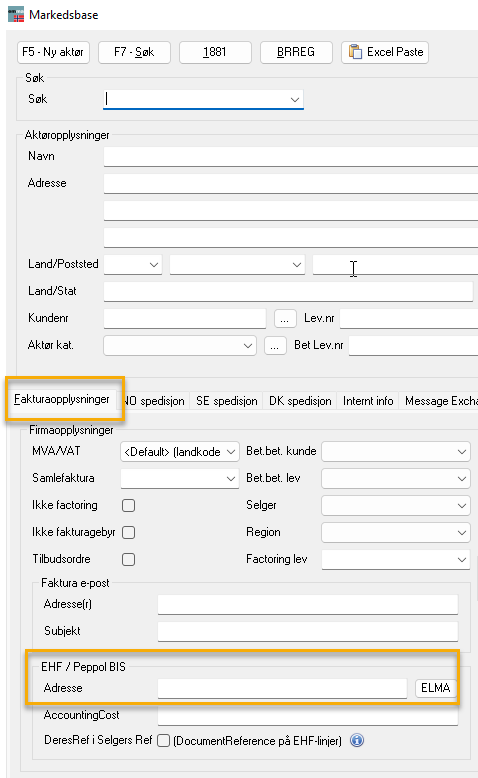
The recipient's organisation number is used to identify their EHF address.
Enter the organisation number in the EHF/Peppol BIS Addresses field in the customer's contact details.
If invoices should be sent to another company within the same group, enter that company's organisation number as the EHF address instead.
How Emma selects the invoice recipient
When an order is created for invoicing, Emma checks whether the customer has a contact person with the relevant category and an EHF address or email address.
If a matching contact is found, the address is automatically added to the invoice.
This check is also performed when:
- The customer is changed on an existing order.
- A new order is created directly in the invoicing window.
You can manually change the EHF or email address in the invoicing window if required.
2. Preparing an invoice for sending
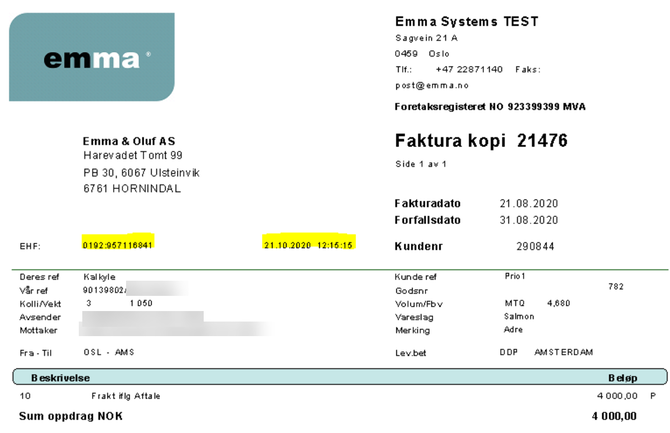
Before an invoice can be sent, it must be finalised and a PDF document must be generated.
Once the PDF has been created, the invoice is marked Ready = Yes (Klar = Ja).
Important: Previewing an invoice does not generate the final PDF.
If you have used the preview function to check the invoice, you must still click the Print button to approve it and generate the PDF.
The generated PDF will be included when the invoice is distributed.
Making changes to an invoice
If you make changes to an invoice, you must generate a new PDF.
Emma creates a new version of the invoice, for example Version 2, so that changes can be tracked between versions.
Only the latest version of the invoice is sent.
If an invoice is changed after it has already been sent, Emma resets its status to Not sent. The updated invoice must then be sent again.

Identifying invoices awaiting distribution
Invoices with an EHF or email address that have not yet been sent are highlighted in orange in the Ready (Klar) column.
3. Sending invoices
Invoices can be sent in two ways:
- Directly from the invoicing window: Send invoices individually or select several invoices for distribution.
- Through the Invoice Journal: Send invoices as part of the invoice posting process.
Both EHF and email invoices are handled by the same distribution process.
Emma automatically determines whether to send the invoice via EHF or email based on the recipient address.
Once an invoice has been sent, Emma records the date and time of distribution.
Sending invoices manually
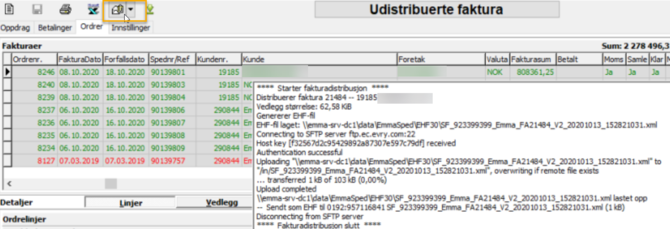
To send invoices manually:
- Open the invoicing window.
- Select the invoices you want to send.
- Alternatively, click the Email button in the top-right corner to select invoices with an email address.
- Click the Envelope button in the top-left corner to send the selected invoices.
Emma sends the selected invoices and displays a distribution log.
Sending invoices through the Invoice Journal
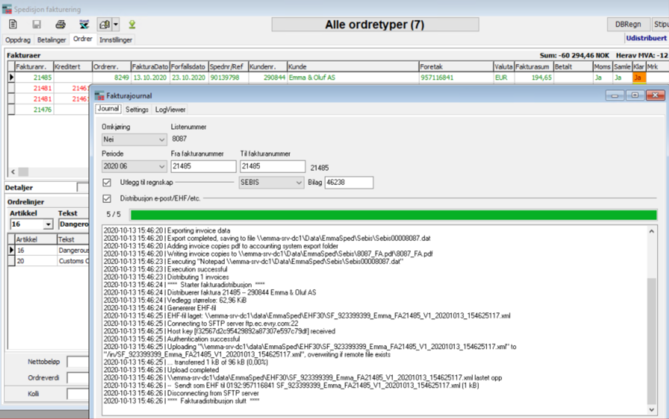
When invoices are posted through the Invoice Journal, Emma checks whether they have already been sent.
Only invoices that meet the following conditions are sent:
- The invoice is marked as ready, meaning a PDF has been generated.
- The invoice has not already been distributed.
A distribution log is displayed so you can review the process and identify any errors.
4. Retrieving delivery responses
To retrieve responses from the EHF distribution service, click the green button in the invoicing window.
This retrieves available delivery responses and error messages.
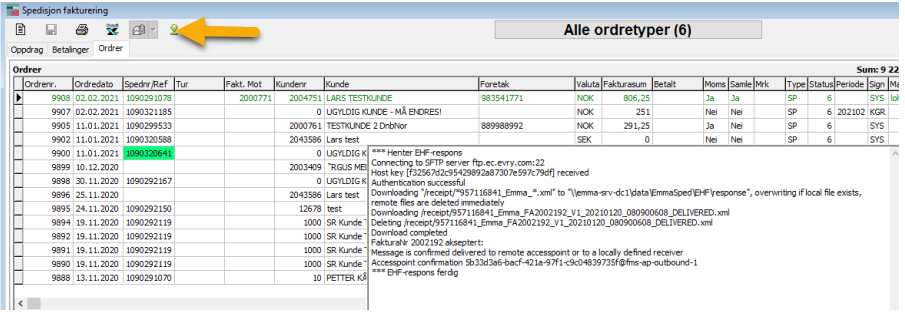
When an EHF invoice is sent, it is validated by the electronic invoicing service provider, also known as an Access Point.
Access Points, such as Basware and Evry, check that the invoice meets the required format and delivery requirements.
If the recipient cannot be identified or the invoice contains a validation error, an error response is returned to Emma.
How to identify an error
If an EHF invoice fails validation:
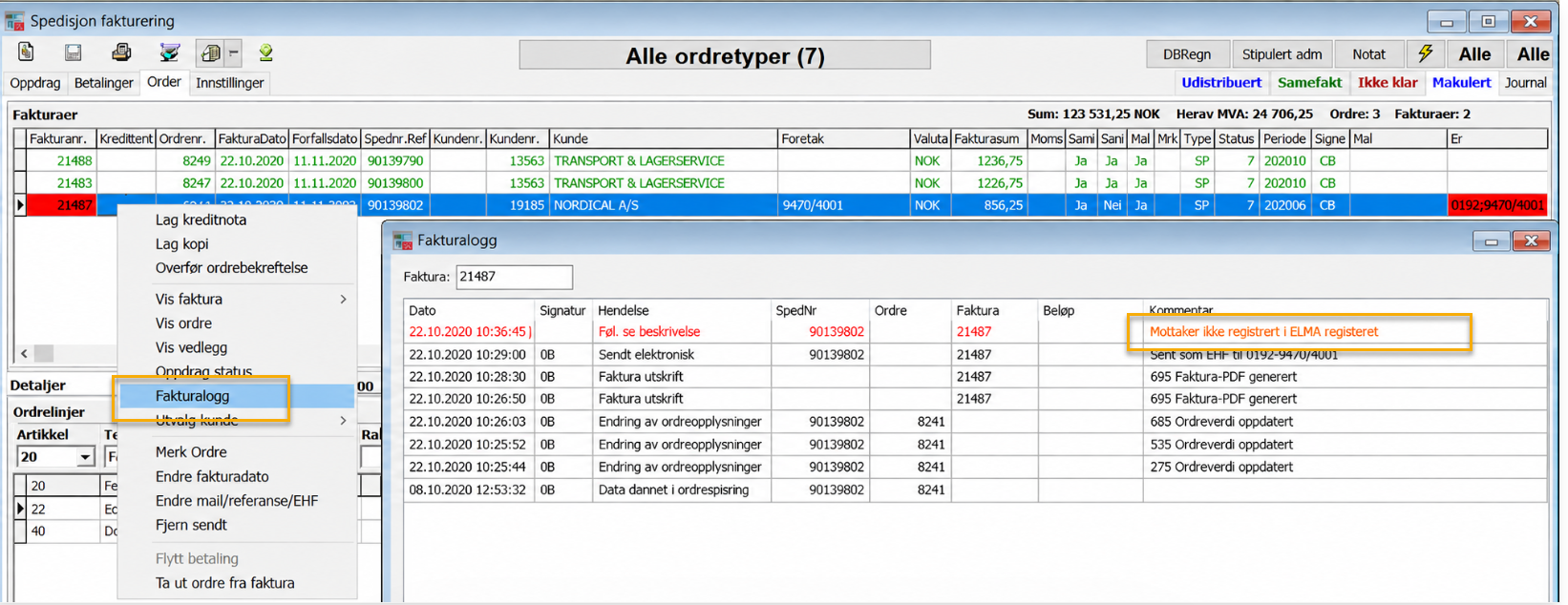
- The invoice number and EHF address are highlighted in red.
- An error message is recorded in the invoice log.
To view the error:
- Right-click the invoice.
- Select Invoice Log (Fakturalogg).
- Review the error message to identify the cause.
How to correct and resend an invoice
If the error is related to the recipient's EHF address:
- Check that the organisation number is correct and registered in ELMA.
- If necessary, send the invoice by email instead.
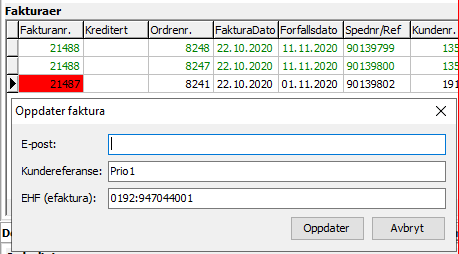
- Right-click the invoice and select Change email/reference/EHF (Endre mail/referanse/EHF).
- Remove the EHF address and enter the recipient's email address.
- Click the Send button (envelope with paperclip) to resend the invoice.
Successful delivery validation
When an EHF invoice has been sent and successfully passed the Access Point's validation checks, the invoice number is highlighted in green.
This confirms that the invoice has passed the distribution service's checks.
6. Viewing undistributed invoices
To view invoices that have not yet been successfully distributed, click Undistributed (Udistribuert).
This displays invoices that:
- Have an EHF or email address but have not yet been sent.
- Have encountered an error during distribution.
You can use this overview to identify invoices that require attention or need to be resent.

7. Adding attachments to invoices
Attachments can be included with EHF invoices in the same way as with invoices sent by email.
In the invoicing settings, you can choose how attachments are included during distribution:
- Merge attachments: Combine the attachments into a single document.
- Embed attachments separately: Include each attachment as an individual file.
These options are configured in the invoicing distribution settings.
8. Technical setup
How EHF and Peppol work
EHF is Norway's standard format for electronic invoicing and is based on the European Peppol (Pan-European Public Procurement Online) network.
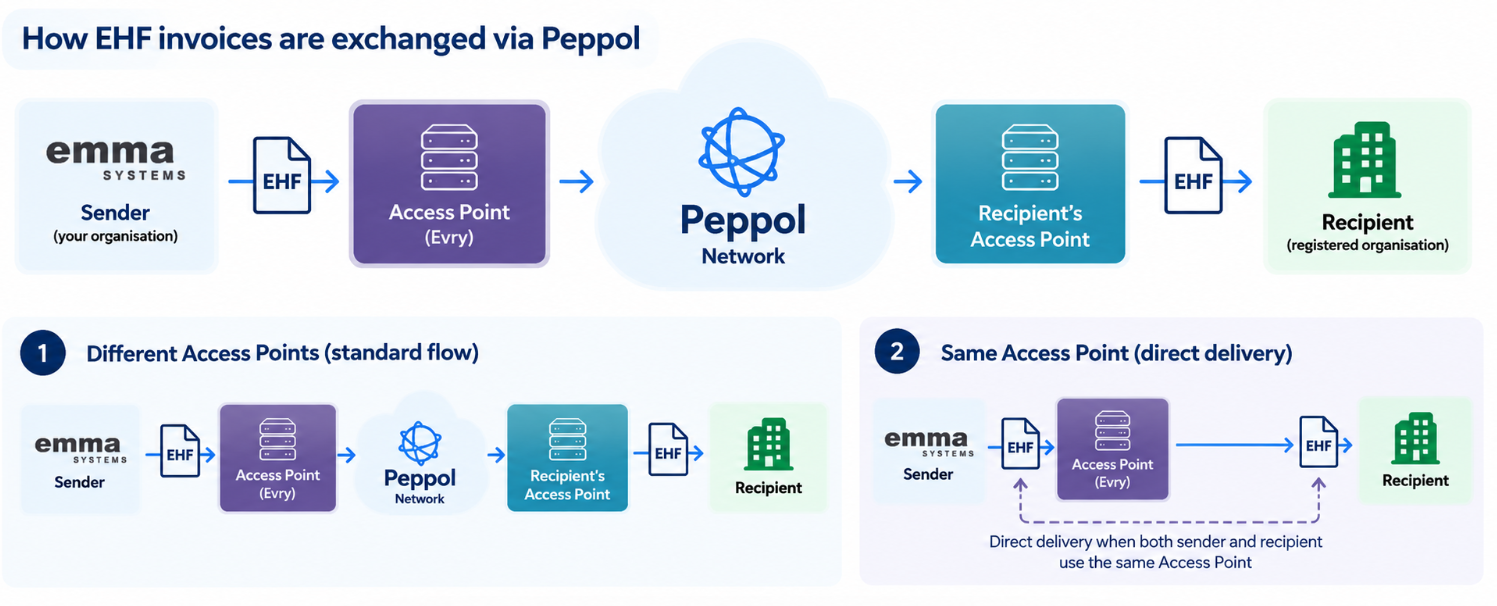
Peppol connects businesses and public organisations through a network of service providers called Access Points.
An Access Point works much like a digital post office. It handles the exchange of electronic invoices between senders and recipients.
Each organisation uses an Access Point to connect to the Peppol network. This allows invoices to be exchanged with other registered organisations, even when they use different service providers.
How invoices are routed
To send an electronic invoice, you need the recipient's registered Peppol ID.
For Norwegian organisations, this normally consists of the identifier prefix 0192 and the organisation number.
Your Access Point (Evry) handles the delivery. It either sends the invoice directly to the recipient or routes it through the recipient's registered Access Point.
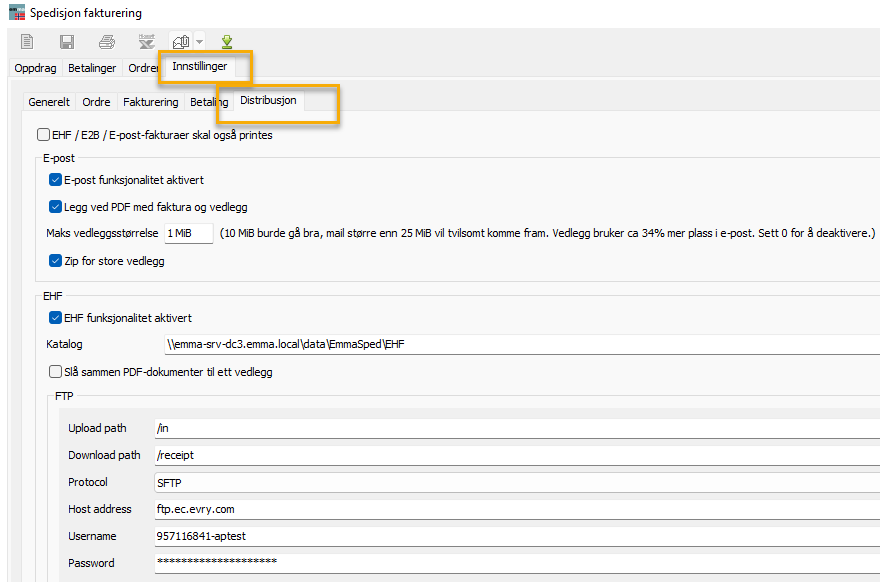
Configuring EHF in Emma
Before your company can start sending EHF invoices, the EHF service must be configured.
The setup requires:
- The sender's organisation number.
- Communication credentials for the EHF distribution service.
- Access to the required communication endpoint.
Emma Support normally handles the initial configuration.
If changes are required later, the company can update the settings under:
Invoicing Settings → Distribution
Firewall requirements
The firewall must allow communication with the following endpoint:
ftp.ec.evry.com
If invoices cannot be sent or delivery responses cannot be retrieved, contact your IT administrator to check that the required network access is available.