.png?width=300&height=100&name=emma%20logo%20santa%20hat%20(4).png)
1. Make Sure You Have an Emma CMS User Account
Before logging in, you must have your Emma CMS user created.
If you are unsure how to set this up, please follow the guide below:
https://hub.emmasys.com/help-center/azure-user-setup
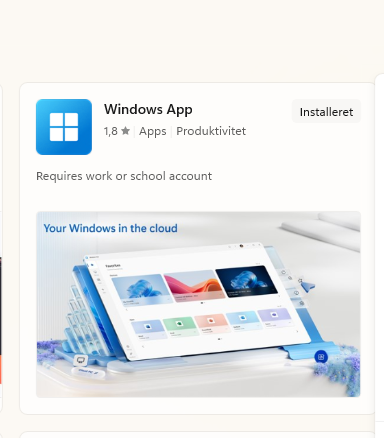
2. Install the Windows App
To access Emma CMS, you need to install the Emma Windows App via the Microsoft Store.
-
Open the Microsoft Store on your PC.
-
Search for Emma CMS or your organization’s provided application name.
-
Click Install.
If you do not have access to the Microsoft Store, please contact your internal IT support team.
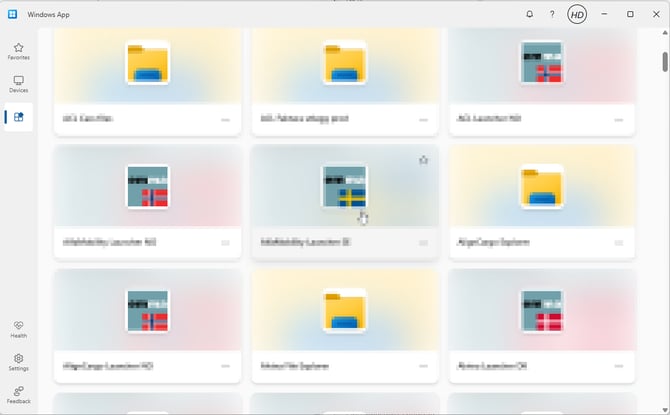
3. Launch the Windows App
Once the installation is complete:
-
Open your Start Menu.
-
Find the Windows App among your installed programs.
-
Click to open it.
- Log in with you Emma CMS credentials
-
After logging in, you will see the Emma CMS logo. Click on the logo to open Emma Launcher
6. Choose Your Database (TEST or Production)
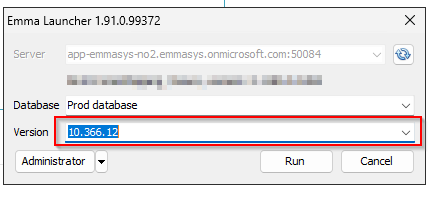
In Database, select TEST or PRODUCTION, depending on what you need to work with
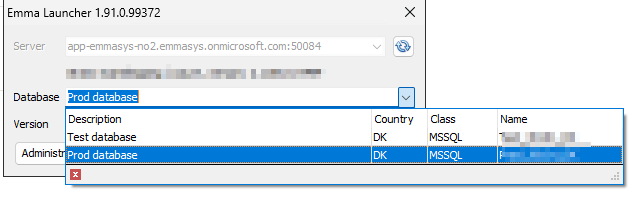
7. Version Number
The Version field is automatically set to the newest available version by default.
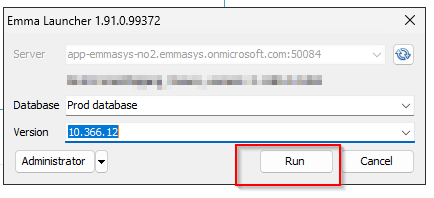
8. Click “Run”
When ready, click RUN to launch Emma CMS.
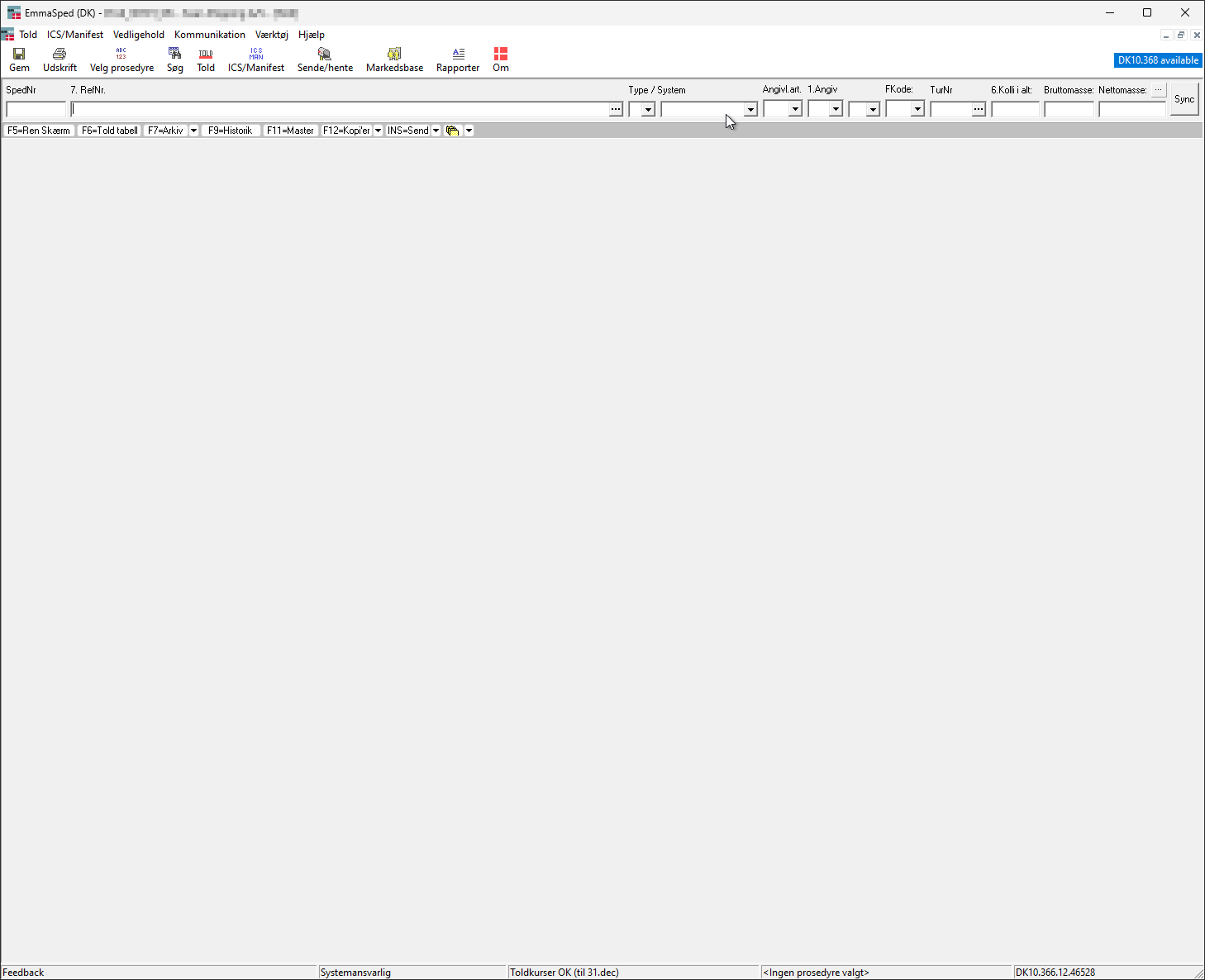
Now you are ready!
You are now logged into Emma CMS and ready to start working.
If you encounter issues during login, please contact your internal IT support team or Emma Systems support for assistance.