.png?width=300&height=100&name=emma%20logo%20santa%20hat%20(4).png)
Save a File to Your Local Computer
- When you want to save files from Emma CMS hosted on Azure, then select Save As.
- In the Save As window, expand This PC.
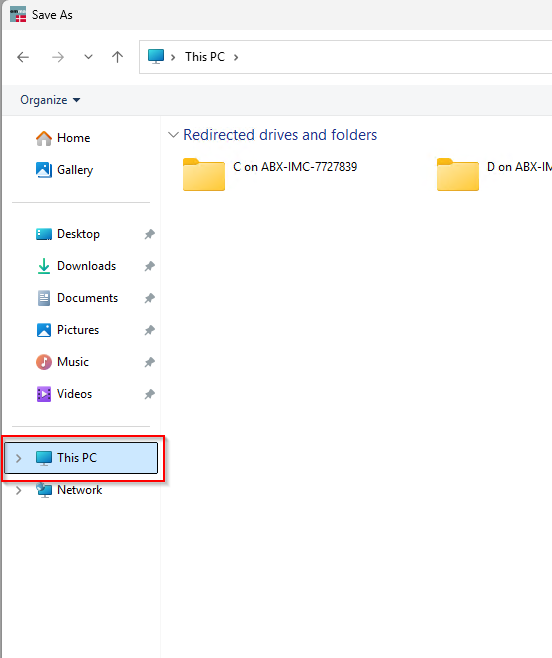
- Locate your redirected local drive. It will typically appear as:
- Local Disk (C:) on YourComputerName
- Documents on YourComputerName
- Desktop on YourComputerName
- Other redirected local drives
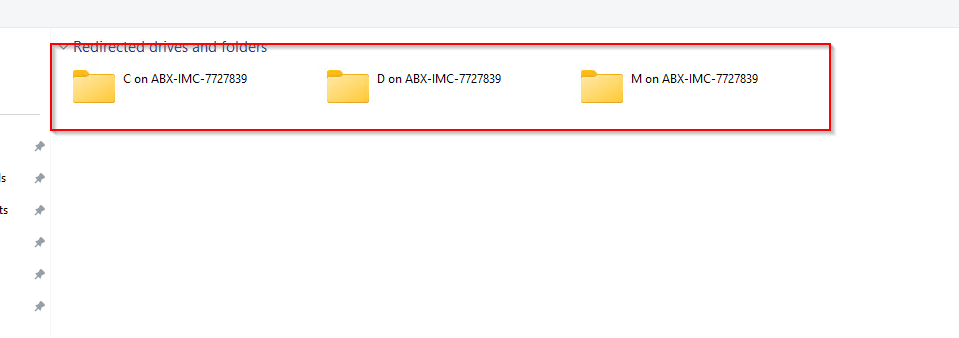
- Select the drive where you want to save the file, browse to the folder where you want to save the file.
- Click Save.
The file is now stored directly on your local computer and can be accessed outside the Windows App.
Pin a Folder to Quick Access (Recommended)
If you regularly save files to the same location, you can pin the folder to Quick Access for easier access.
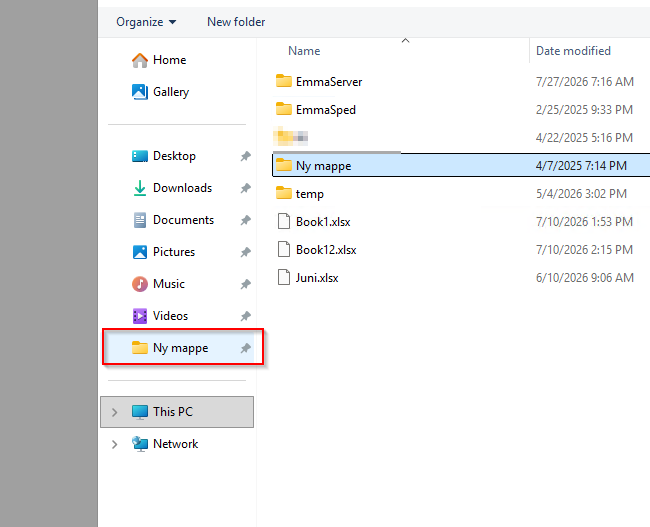
- Open the folder you want to use (for example, Documents or an Emma Exports folder).
- Right-click the folder.
- Select Pin to Quick Access.
The folder will now appear under Quick Access in File Explorer, making it faster to find when saving files in the future.