.png?width=300&height=100&name=emma%20logo%20santa%20hat%20(4).png)
This function is available at House level in NCTS, under the Goods item section
From your excel-sheet, select and copy the rows (including the header row) that you wish to paste into Emma.
Click on the Excel paste button in the Goods item section.

The system will open the paste window. The first row is assumed to contain column descriptions.
The grid will be filled automatically with the data from Excel.
Carefully check that all information has been imported correctly.
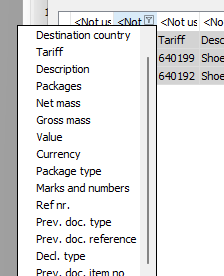
For each column, select the appropriate label by clicking on the drop-down symbol next to the column name and choosing the correct field (e.g. Tariff, Description, Gross mass, Net mass, Packages, Value, etc.).

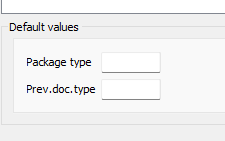
If required, you can set default values for all lines:
-
Package type
-
Previous document type
These values will apply to all imported rows.
If the column mapping is incorrect, you can click Reset mapping in the top right corner and remap the columns.
Once all columns and values appear correct, click Save.