.png?width=300&height=100&name=emma%20logo%20santa%20hat%20(4).png)
1. Open the Customs Table
In Customs Press F6 on your keyboard to open the Customs Table.
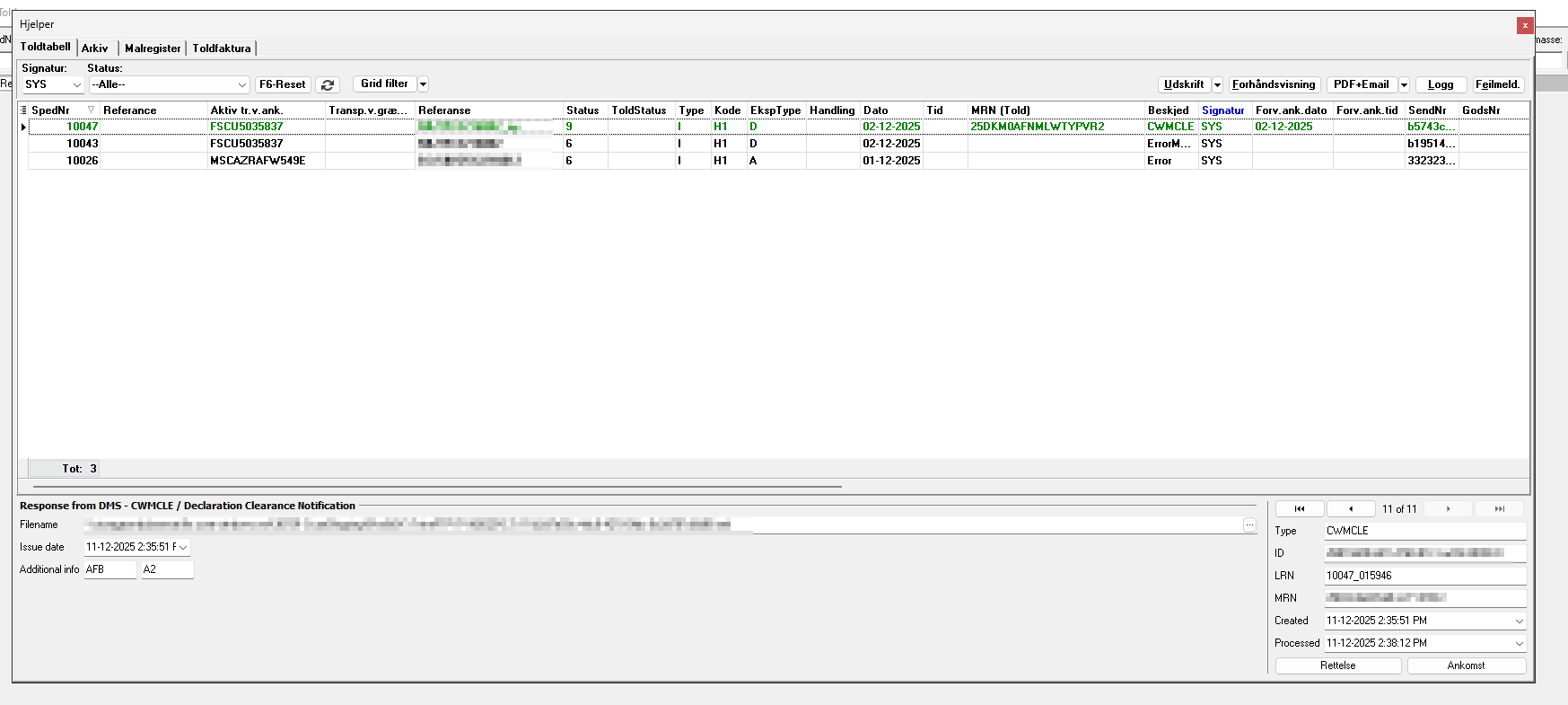 2. Select a declaration
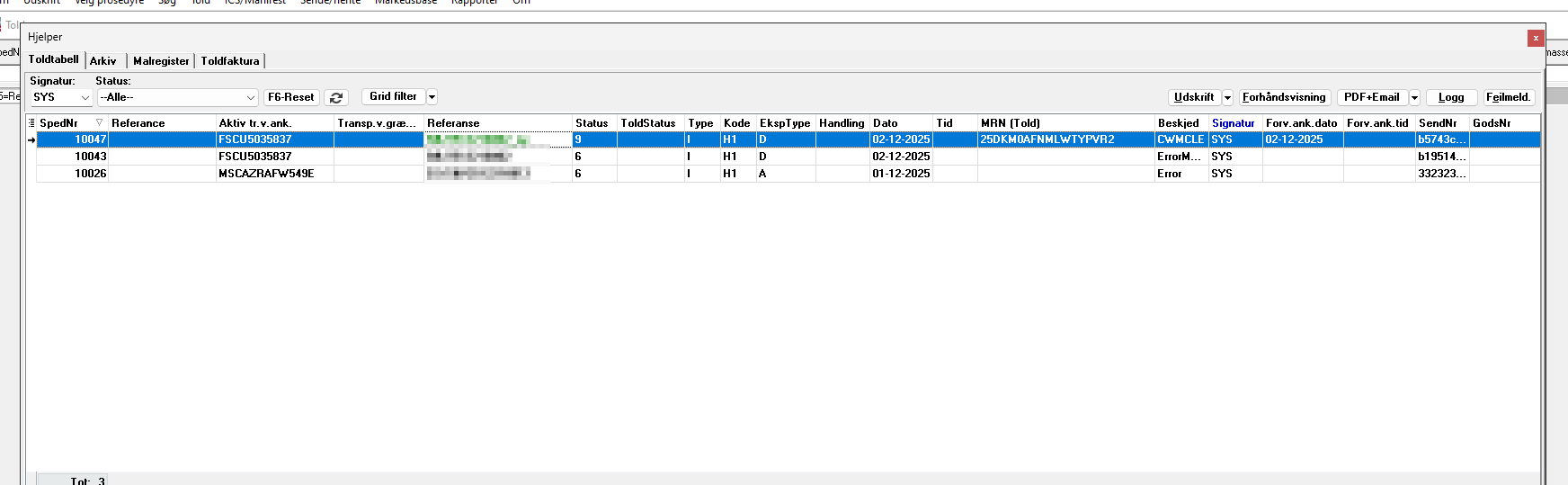
Click the declaration you want to send using the left mouse button.
The selected declaration will be highlighted in blue.
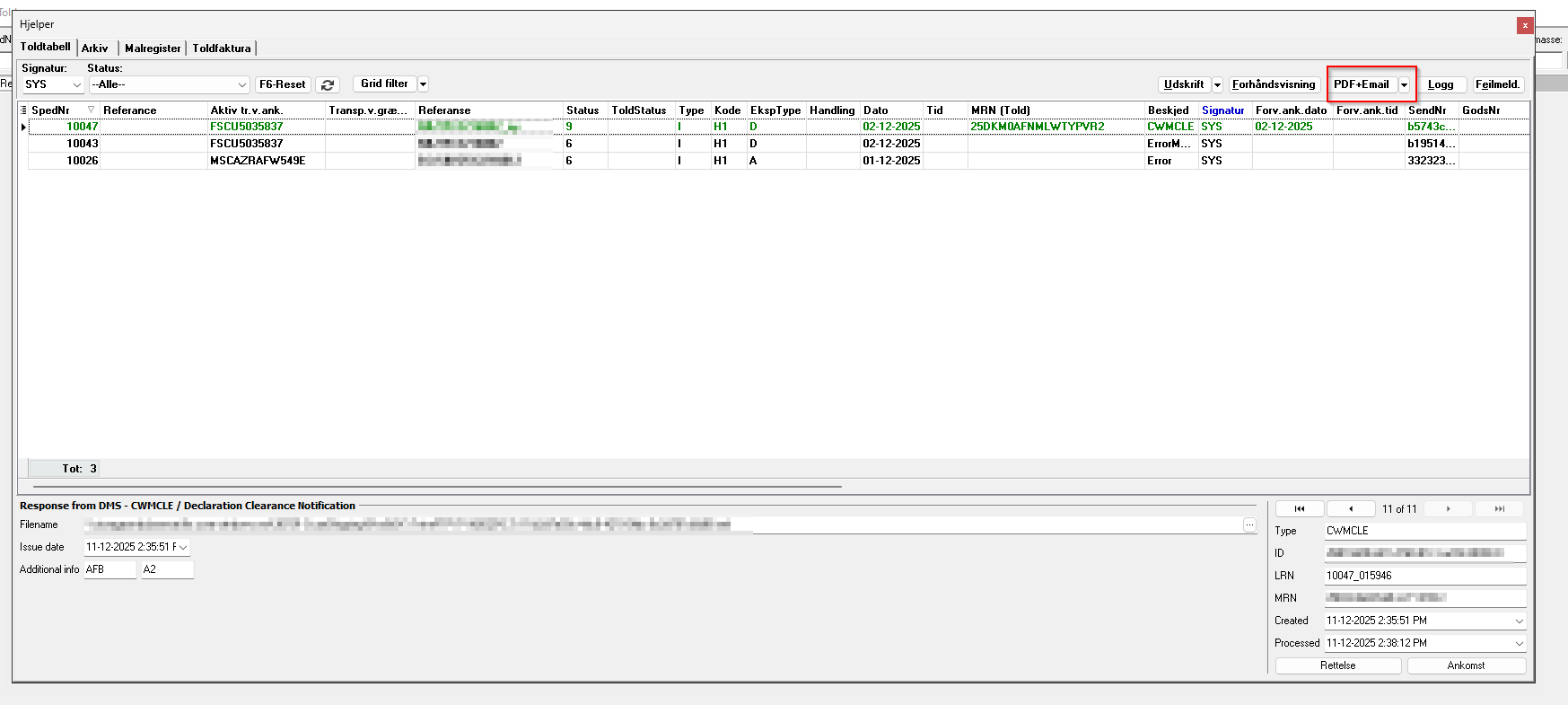
3. Click PDF + Email
Click PDF + Email in the toolbar.
If an error message appears, please contact Emma Systems Support to get help setting up the email functionality.
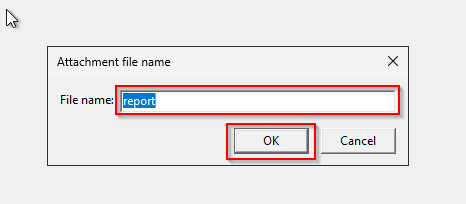
4. Edit the PDF file name
(Optional) Update the PDF file name if needed before sending the email, and click on "OK"
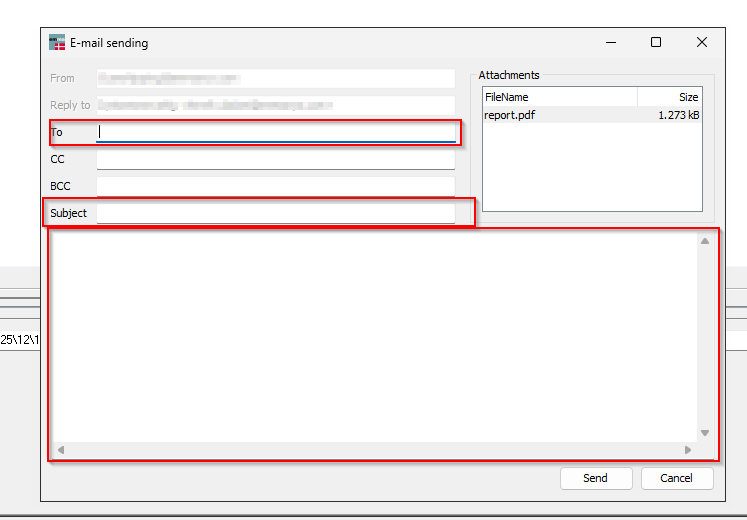
5. Compose the email
Enter the required email information:
-
To – Recipient’s email address
-
Subject – Email subject
-
Message – Email content
6. Send the email
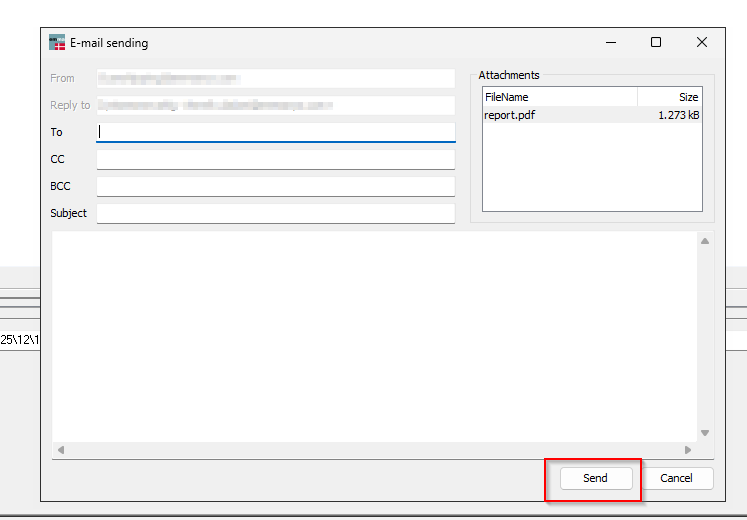
Click Send to email the PDF to your customer.
Now the email will be sent, they will be sent in time interval, for an example each 10 min. Contact our support to check how offen your emails are send.