.png?width=300&height=100&name=emma%20logo%20santa%20hat%20(4).png)
A House Consignment contains information about an individual consignment of goods and links the consignment and its customs declaration to the relevant Master Consignment or Transport.
A House Consignment can be linked in two ways:
Via a Master Consignment:
Transport → Master Consignment → House Consignment → Customs Declaration
Direct House:
Transport → House Consignment → Customs Declaration
A Direct House is used when the House Consignment is linked directly to the Transport without a Master Consignment.
House Consignments can be linked using waybill references or MRN relations.
Ways to create a House Consignment in Emma
There are several ways to create a House Consignment in Emma. The recommended method depends on where the customs declaration was created and whether you are also responsible for the Master Consignment or Transport.
| Situation | Recommended method |
|---|---|
| The customs declarations are available in Emma and you are creating one or more Houses for your Master | Method 1 – Fetch customs declarations from the Master |
| The customs declaration is available in Emma, but the House will be linked to a Master or Transport later | Method 2 – Generate House from a customs declaration |
| The declaration was created externally, but you have the TVINN receipt | Method 3 – Generate House from a TVINN receipt |
| No customs declaration or TVINN receipt is available electronically | Create the House manually |
Method 1 – Fetch customs declarations from the Master Consignment
Recommended when you are creating one or more House Consignments for a Master Consignment and the customs declarations are available in Emma.
This is the recommended and most efficient method when several House Consignments belong to the same Master Consignment.
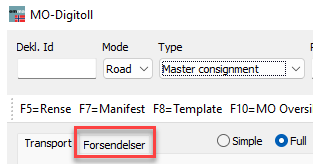
Open the Master Consignment and select the Consignments tab.
Click Fetch customs declarations.
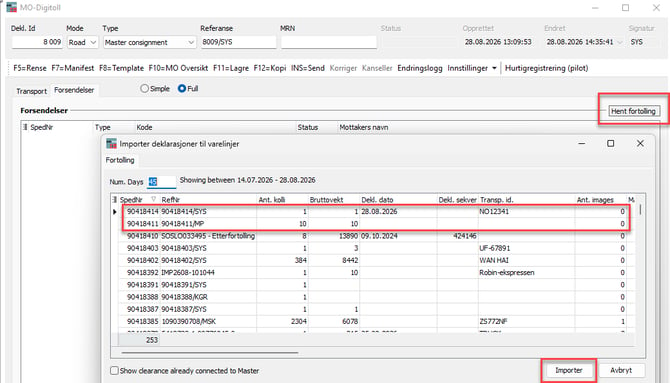
You can search for and select as many customs declarations as required. Once the relevant declarations have been selected, click Import.
Emma will ask whether you want to submit the House Consignments immediately. Select Yes to create and submit them automatically.
Emma will then automatically:
- Create a House Consignment for each selected customs declaration
- Populate the House Consignment with information from the customs declaration
- Add the relevant references from the Master Consignment
- Link the House Consignment to the Master Consignment
- Submit the House Consignment to Norwegian Customs
House Consignments generated automatically by EmmaSped are shown with the signature #ES# in the MO Overview.
Once the House Consignments have been created, the Master Consignment can also be submitted by clicking INS.
Best practice: Use this method whenever the customs declarations are available in Emma and you are creating the House Consignments under your own Master Consignment.
Method 2 – Generate a House Consignment from a customs declaration
Recommended when the customs declaration is available in Emma, but the House Consignment will be linked to a Master Consignment or Transport later.
Open the relevant customs declaration in Emma and select, from dropdown menu either Generate House or direct Consignment.
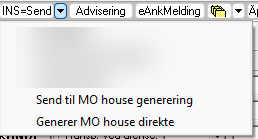
Emma uses the information already available in the customs declaration to create the House Consignment.
The house consignment will be visible in the MO overview
The House Consignment can then be linked to:
- Your own Master Consignment
- An external Master Consignment
- A Transport directly (Direct House)
This method is particularly useful when another party is responsible for submitting the Master Consignment or Transport.
Once the House Consignment has been generated, check the information and add the required waybill references or MRN relation before submitting it to Norwegian Customs.
Best practice: Use this method when the customs declaration exists in Emma, but you do not want to create the House Consignment directly from your own Master Consignment.
Method 3 – Generate a House Consignment from a TVINN receipt
Recommended when the customs declaration was submitted externally and is therefore not available electronically in Emma.
This is useful when you are responsible for submitting the House Consignment on behalf of another declarant.
See guide: Digitoll - Create a House Consignment from an external TVINN Declaration
Best practice: Use this method when another party has completed the customs declaration and you need to submit the House Consignment, but the declaration data is not available electronically in Emma.
Create a House Consignment manually
If neither the customs declaration nor a TVINN receipt is available in Emma, you can create the House Consignment manually.
When creating a House Consignment manually, all required information must be entered before it can be submitted to Norwegian Customs.
Select the correct mode
First, select the correct Mode based on how the goods are being transported:
- Road
- Sea
- Air
- Rail
Make sure the correct mode is selected before entering the remaining information.
Waybill:
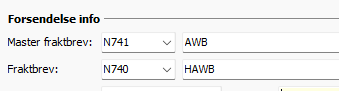
Select the appropriate waybill type and enter the House waybill number.
If the House Consignment belongs to a Master Consignment, also enter the relevant Master waybill reference.
The references are used to link the House Consignment to the correct Master Consignment.
If the House Consignment is a Direct House, it is linked directly to the Transport instead.
Alternatively to master waybill reference, the messages can be linked using an MRN relation.
Gross mass/ Collie:
Enter the total gross mass and collies of the House Consignment.

Consignor:
Enter the details of the Consignor.
The Consignor will normally be the exporter/sender of the goods.
Consignee:
Enter the details of the Consignee.
The Consignee will normally be the importer/recipient of the goods.
Enter the required identification and address information.
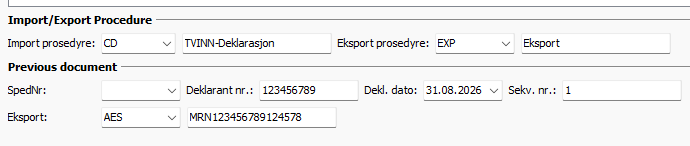
Customs procedure and declaration reference:
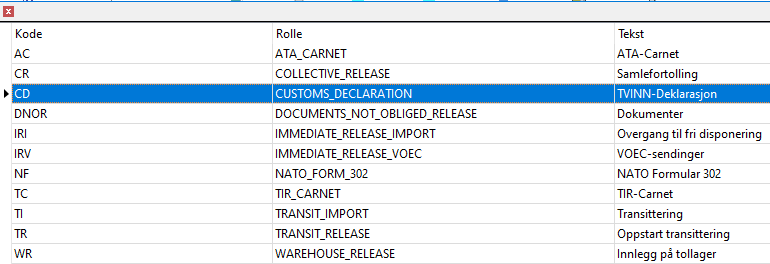
Enter the appropriate customs procedure and reference to the customs declaration.
The information required depends on the procedure used for the goods.
For an import declaration, enter the relevant declaration reference in the appropriate procedure field.
Where applicable, previous documents or export references must be entered under Previous documents.
Make sure the procedure and declaration references correspond to how the goods are being imported or exported.
Container / transport equipment:
Specify whether a container or relevant transport equipment is used.
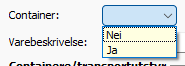
If applicable, enter the required container or transport equipment information.
Linking an existing House Consignment to a Master
House Consignments that have already been created can also be linked to a Master Consignment from the MO Overview.
Link House to Master
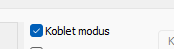
The Link House to Master function is available when Linked mode is OFF.
Select:
- One Master Consignment
- One or more House Consignments
Hold CTRL to select multiple House Consignments.
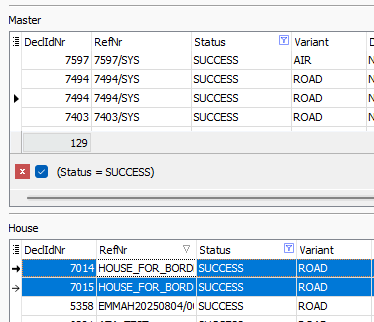
Select Link House to Master.
Emma updates the relevant Master waybill information on the selected House Consignments so that they correspond to the selected Master Consignment.
The function cannot be used if the House Consignment has already received a control result.
Submitting House Consignments from the MO Overview Send selected
Use Send selected to submit one or more selected messages.
The selected messages are set to Queued.
This function can be used when the status is:
- Blank
- Reopened
Only messages from the table currently in focus are submitted.
Send linked:
Send linked is available when Linked mode is ON.
This function queues the selected manifest in the upper table together with the linked manifests displayed in the tables below.
The messages can be queued when:
- The status is Blank or Reopened
- The latest control result is empty
This makes it possible to submit linked Transport, Master and House messages together from the MO Overview.
Amend a House Consignment
If information needs to be changed after the House Consignment has been submitted, select Korriger.
Make the required changes and submit the House Consignment again.
If the House Consignment is linked using waybill references, make sure that any changes to these references still correspond with the relevant Master Consignment or Transport.
Cancel a House Consignment
If the House Consignment needs to be withdrawn, select Kanseller to cancel the submitted message with Norwegian Customs. and the house status will changed to revoked
Which method should I use?
For most users, the following workflow is recommended:
Creating several Houses for your own Master?
→ Use Method 1 – Fetch customs declarations from the Master
Customs declaration already exists in Emma, but the Master or Transport will be handled separately?
→ Use Method 2 – Generate House from a customs declaration
Another declarant created the customs declaration and you only have the TVINN receipt?
→ Use Method 3 – Generate House from a TVINN receipt
No electronic declaration data or TVINN receipt available?
→ Create the House Consignment manually
Whenever possible, we recommend generating the House Consignment from existing data rather than entering all information manually. This reduces manual input and the risk of incorrect references.
Related articles