.png?width=300&height=100&name=emma%20logo%20santa%20hat%20(4).png)
- Direct Transport Arrangement
- Customs Clearance to a Bonded Warehouse
- Registrer for customs clearance for Sea
- Generate House from customs clearance
Option 1: Direct Transport Arrangement (Direktefortolling)
To submit a customs declaration under the direct transport arrangement and have the goods released at the border, follow the steps below:
You must have authorization from the Norwegian Customs Authority to use the direct transport arrangement.
1. Create an import customs declaration
-
Complete the customs declaration with all required information.
Upload all required supporting documents to the declaration.
yellow scan button indicates documents uoloaded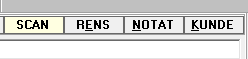
If documents marked as EXT they will be available for customs via API
2. Enter the warehouse code (lagerkode) and customs office (tollsted)
-
Use warehouse code X.
-
Specify the correct customs office.
-
Enter the warehouse code and customs office in fields 30–49.
3. Goods number
-
The goods number is generated automatically using the following format:
Year + Customs Office + code D or DT -
Example:
202501Dor202501DT. (D = direct customs clearance, DT = DigiToll. Both are accepted)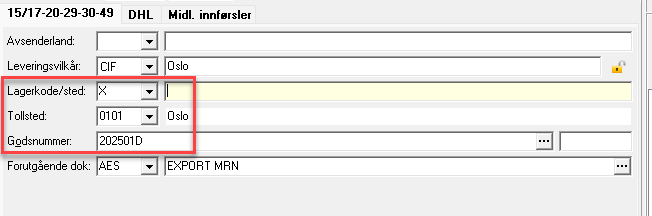
4. Previous Document (for Road only)
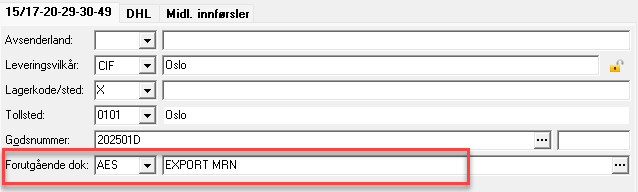
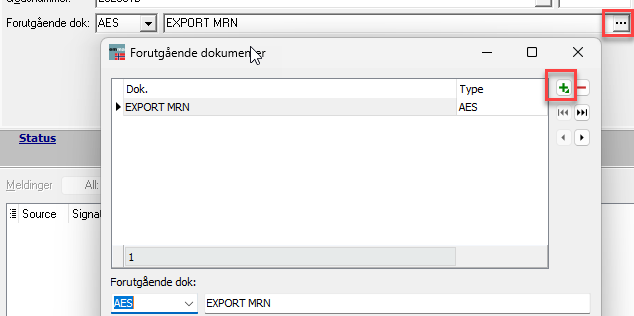
- Enter the MRN and document type in the Previous Document section. Use AES for a previous export or N820 for a transit movement that will be discharged at the border. If both apply, select both by clicking the three-dot icon.
5. Select the Customs Clearance Unit
-
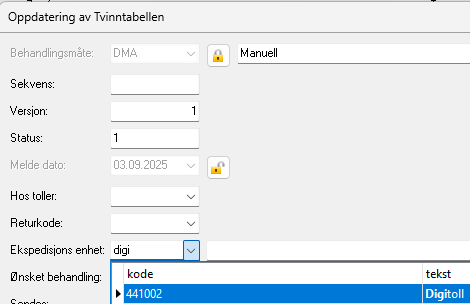
Click Insert and select customs clearance unit 441002.
Check the TVINN Table
-
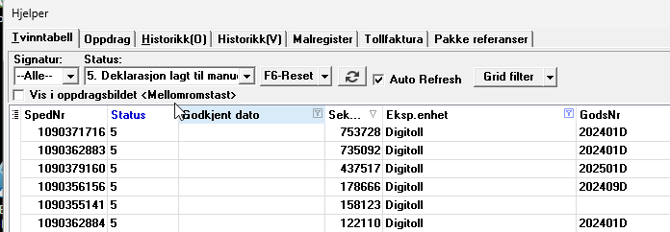
After you submit the customs declaration, it will appear in the TVINN Table with status 5 or 8.
-
Once the shipment crosses the border, the goods are released by customs and the declaration moves to status 9.
Making Changes to a Customs Declaration
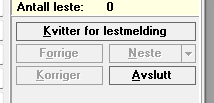
If needed, you can amend the declaration before it arrives at the border. Click **Read Message** and then **Korriger**. The declaration will change to status 6 and reopen for correction.
Option 2: Customs Clearance to a Bonded Warehouse
If the customs declaration is intended for a bonded warehouse and you cannot submit all the required information to TVINN immediately, follow these steps:
1. Create a customs clearance
-
Enter the required information:
-
Consignor
-
Consignee
-
Colli
-
Weight
-
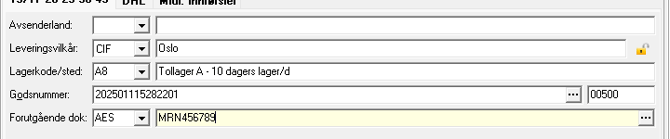
2. Enter the Warehouse Code and Goods Number
-
Use the warehouse code assigned to the bonded warehouse, such as A, A8, or E.
-
Enter or retrieve the goods number depending on setup
3. Provide the Previous Document (for Road only)
-
Enter the MRN or other relevant previous-document information.
4. Wait before submitting to TVINN
-
The customs declaration does not need to be submitted to TVINN yet.
-
During the transition period, leave the customs declaration in the system and send it to the normal customs clearance unit. This ensures the correct bonded-warehouse entry or withdrawal is registered.
5. Send the Customs Declaration to MO for House Generation
-
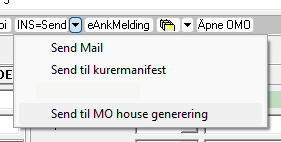
In MO, you can forward the customs declaration for House generation:
-
Select the drop-down menu next to INS.
-
Click Send to MO for House Generation.
-
-
Emma will then generate a House based on the information provided.
- You can retrieve the House from the F7 or F10 table. Note that its signature is #ES# because it was generated by the system.
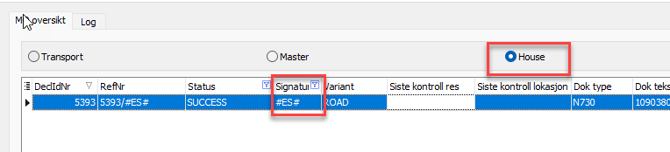
- You can retrieve the House from the F7 or F10 table. Note that its signature is #ES# because it was generated by the system.
-
The House can then be linked to a master and transport in the MO-overview.
-
Another option is to send it directly to MO for House generation.
This feature generates and opens the House consignment directly, so you can make any necessary amendments before sending it to customs.
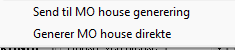
**Note:** Make sure the correct border transport is selected so the correct mode of transport is applied to the House consignment.
