.png?width=300&height=100&name=emma%20logo%20santa%20hat%20(4).png)
1. Create the Rail Transport
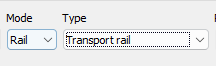
From the MO Digitoll menu, select:
- Mode: Rail
- Type: Transport rail
2. Enter the carrier and train details
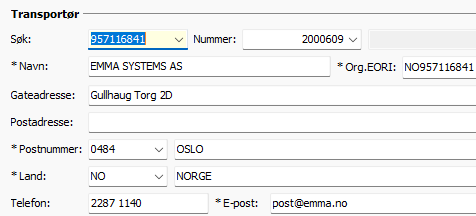
Under Carrier, enter the company responsible for the transport.
Select the carrier from the Carrier or Customer database.
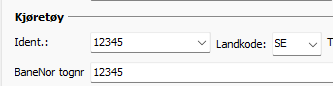
Under Vehicle, enter the train details:
- Identity: Enter the identification of the train.
- Country code: Select the relevant country code.
- Train number: Enter the Banenor train number.
Operator information can be registered as "På forespørsel", together with an email address, and provided if requested by Norwegian Customs.

3. Enter the arrival details
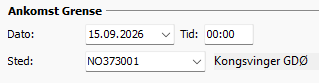
Under Arrival at border, enter:
- Date
- Time
- Place: Select the relevant border crossing or railway location
4. Connect the consignments
Open the Master dok tab.
For Master Consignments, enter the relevant transport document number in the Master transport document field.
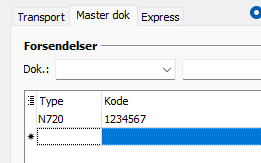
If a House Consignment is transported directly without a Master(BULK) enter the relevant transport document number in the House transport document field instead.
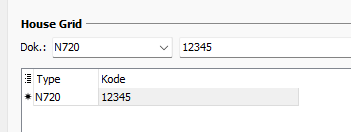
This information is used to connect the consignments to the Rail Transport.
Note: Use the Master transport document field when connecting a Master Consignment. Use the House transport document field only when the House Consignment is connected directly to the Transport.
5. Submit the Transport
When all required information has been entered and the consignments have been added, press INS = Send to submit the Transport.
Open the MO Dashboard to view the Transport and check the connected Master and House Consignments and their statuses.
Using templates
Press F8 = Template to save frequently used transport information as a template or load an existing template.
Templates can be useful for recurring rail transports or other transport details that are used regularly.